DisplayBuddy Documentation
Learn how to use DisplayBuddy and get the best out of your setup
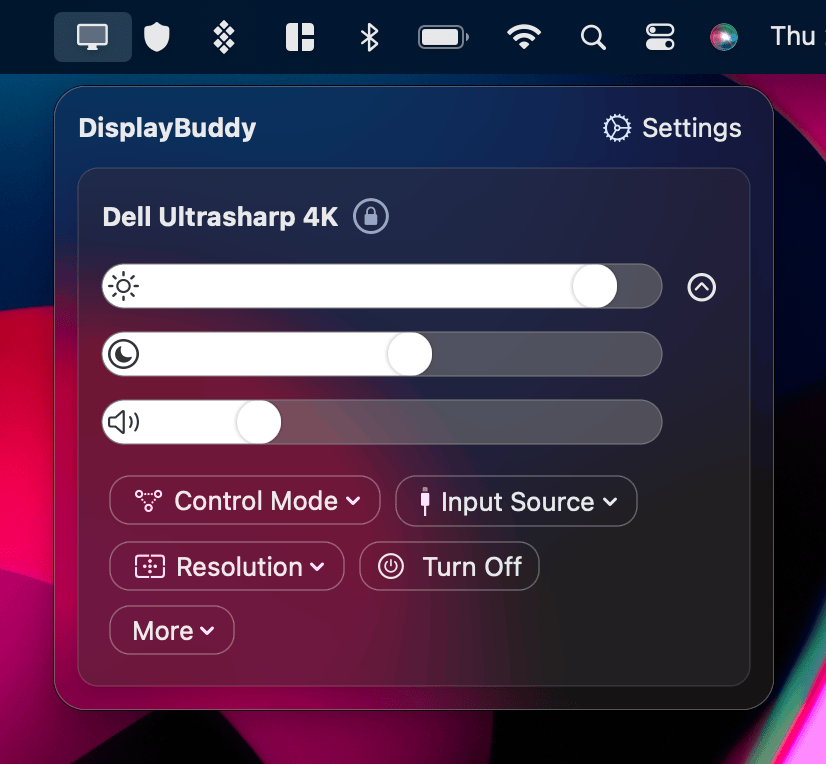
Welcome to the DisplayBuddy documentation. Here you'll find everything you need to set up and get the most out of your display control setup on Mac.
Getting Started
- Getting Started with DisplayBuddy - Set up DisplayBuddy, connect to your monitors, and start controlling them right away.
- Setup Keyboard Shortcuts - Use your keyboard to control display brightness, contrast, and volume.
Core Features
- Sync - Adjust all displays together in perfect harmony.
- Presets - Save all settings for multiple displays and restore them effortlessly.
- Schedules - Change displays settings automatically with events like sunrise or charging.
Advanced
- Automation and Scripting - Automate and control your displays with your existing workflows and scripts.
- Command Line - displaybuddy CLI - Control your displays from the terminal with scripts, shortcuts, and automation.
DisplayBuddy
for macOS 10.13+
Take control of your monitors
Control brightness, contrast, volume, and much more.
Buy NowLifetime license • 7-day refund on full-price purchases