Presets
Save all settings for multiple displays, and restore them effortlessly.
Presets are the most powerful way to manage your displays. They let you save every setting across all your monitors—brightness, contrast, volume, input source, and more—and bring them back with a single click.
Creating a Preset
- Adjust your displays exactly how you want them.
- Click the Presets tab in DisplayBuddy.
- Click Create Preset.
- Give it a name (e.g., "Movie Time" or "Work Mode") and pick an icon.
- Choose which settings to include:
- Brightness, Contrast, & Volume
- Input Source (e.g., switch to HDMI 1 or DisplayPort)
- Resolution & Rotation
- Power State (turn displays off/on)
- Sync Settings
Activating a Preset
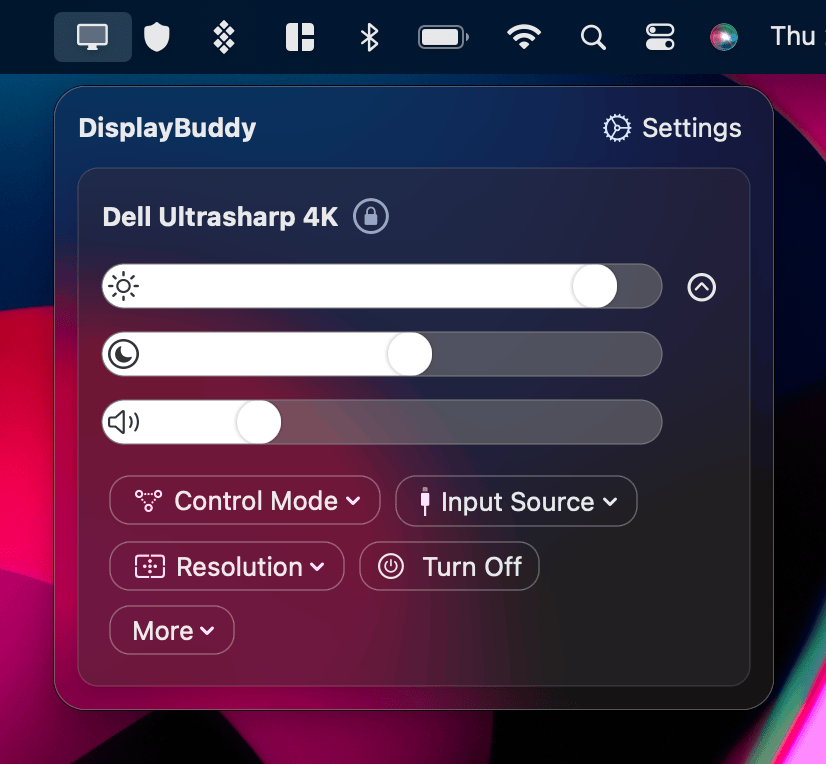
Once saved, your presets appear in the Presets tab and in the DisplayBuddy menu. Just click one to apply all the settings instantly.
Uses
- Mode Switching: One preset for "Deep Work" (high brightness, work monitors on) and another for "Relax" (dimmed, secondary monitors off).
- Day & Night: Quickly switch your setup when the sun goes down.
- Gaming: Switch your monitor to the right input and set the volume for your console.
Pro Tips
- Keyboard Shortcuts: Assign a custom shortcut to your favorite presets in Preferences → Keyboard Shortcuts for even faster switching.
- Schedules: Use Schedules to activate your presets automatically based on time, battery, or when a monitor connects.
Next, learn how to automate your presets with Schedules or control everything using Automation & CLI.
DisplayBuddy
for macOS 10.13+
Take control of your monitors
Control brightness, contrast, volume, and much more.
Buy NowLifetime license • 7-day refund on full-price purchases