Control LG Smart Monitor from Mac (MyView, webOS)
Control LG Smart Monitor brightness and volume from your Mac without touching the buttons. Works with LG MyView and other webOS smart monitors.
LG Smart Monitors (like the MyView series) are popular with Mac users for good reason. They look great on a desk, work as a standalone display, and punch well above their price bracket for creative work. But there is one consistent frustration Mac users run into after buying one: you cannot adjust the brightness from macOS.
There is no slider in System Settings. The brightness keys on your keyboard do nothing. The only option out of the box is the physical OSD buttons on the back or bottom of the monitor.
DisplayBuddy fixes this with a direct Wi-Fi connection to your LG Smart Monitor.
Why Mac Cannot Control LG Smart Monitor Brightness by Default
Most external monitors support a protocol called DDC/CI (Display Data Channel Command Interface), which lets software on your computer send commands directly to the monitor: adjust brightness, change contrast, switch input, and so on. That is how apps like DisplayBuddy, BetterDisplay, and MonitorControl work with most displays.
Many LG Smart Monitors running webOS do not support DDC/CI over their standard connections, or implement it inconsistently. This means standard brightness control software cannot talk to these monitors reliably.
DisplayBuddy solves this differently. Instead of just using DDC/CI, DisplayBuddy connects to LG Smart Monitors over Wi-Fi using the same protocol LG's own remote control app uses. This gives you full hardware control of the monitor directly from your Mac, no physical buttons required.
(Note: If you have a standard LG monitor without webOS/Smart TV features, it likely uses standard protocols. See our guide on controlling LG monitor brightness on macOS instead.)
Supported LG Smart Monitor Models
DisplayBuddy supports the following LG Smart Monitor / MyView models:
Your Mac and your LG Smart Monitor need to be on the same Wi-Fi network for the connection to work.
How to Set Up LG Smart Monitor Control in DisplayBuddy
Setting up takes about two minutes:
- Make sure your LG Smart Monitor and your Mac are connected to the same Wi-Fi network
- Open DisplayBuddy and go to Settings, then LG Smart TV Control
- Click Scan for Devices. DisplayBuddy will search your network for compatible LG monitors
- Select your monitor from the list and click Connect
- Your LG monitor will show a permission dialog on screen. Click Allow to complete the pairing
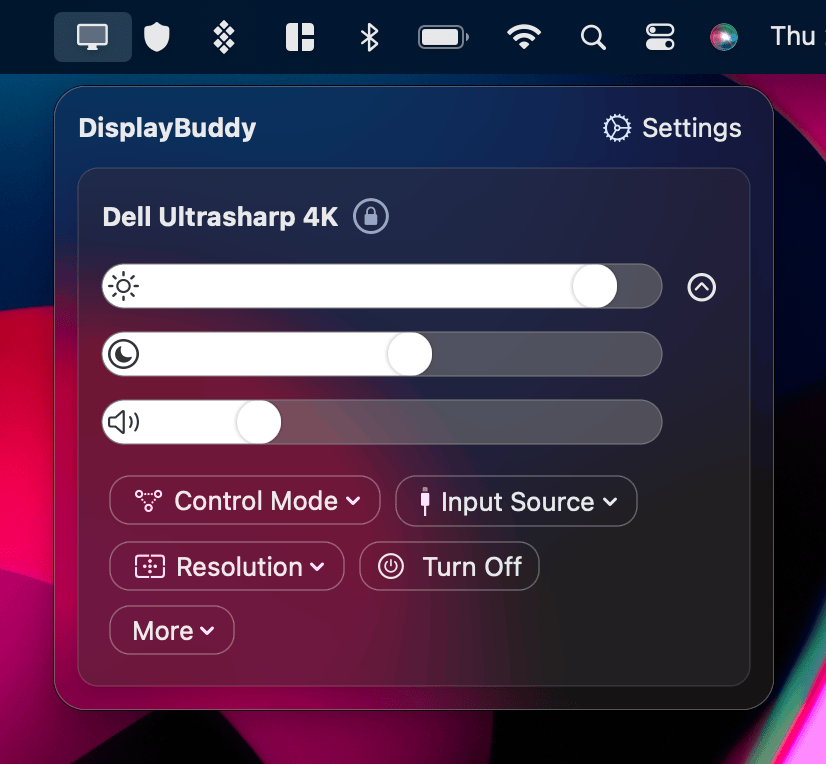
Once connected, your LG monitor will appear in DisplayBuddy's menu bar alongside any other displays you have connected.
What You Can Control
After connecting, DisplayBuddy gives you full control over your LG Smart Monitor directly from the Mac menu bar:
- Brightness: Adjust the actual backlight brightness of the panel, not a software overlay
- Volume: Control the built-in speakers or connected audio devices
- Input Source: Switch between inputs directly from the menu bar
- Power: Turn the monitor off without touching the physical buttons
You can also use DisplayBuddy's Presets feature to save configurations and switch between them instantly. For example, a "Work" preset with high brightness and an "Evening" preset with reduced brightness and volume, switchable with a single keyboard shortcut.
Using Presets with Your LG Smart Monitor
Presets are the most-used feature in DisplayBuddy, and they work particularly well with LG Smart Monitors. Because brightness control is not available natively in macOS for these displays, most users end up going into the OSD every time they want to adjust settings for a different environment.
With Presets, you configure your preferred brightness and volume for each context once, then switch between them instantly:
- Save a "Daytime" preset with brightness at 80% for working during the day
- Save an "Evening" preset with brightness at 30% and volume lowered for late-night use
- Switch between them from the menu bar or with a keyboard shortcut. No OSD, no buttons
If you use multiple monitors alongside your LG Smart Monitor, DisplayBuddy's Sync feature can keep all displays in step when you adjust one. Particularly useful on mixed setups where you have an LG next to a Dell or Samsung.
Setting the Control Mode
DisplayBuddy lets you choose how it communicates with your monitor. For LG Smart Monitors, you want LG Smart selected in the Control Mode dropdown. The other options (DDC/CI, Apple Display Protocol, and Software Control) apply to different monitor types and connection methods.
If you see your LG monitor listed in DisplayBuddy but the sliders are not responding, check that Control Mode is set to LG Smart.
Resetting the Connection
If you need to reset the connection to your LG Smart Monitor, go to Settings, then LG Smart TV Control, and click Disconnect. Then follow the setup steps above to reconnect.
Frequently Asked Questions
Can I control LG Smart Monitor brightness from a Mac without software?
No. Standard macOS cannot send brightness commands over Wi-Fi to webOS. You would have to use the physical buttons on the monitor or the remote. DisplayBuddy connects over Wi-Fi instead, providing a reliable way to get hardware brightness control on these monitors directly from a Mac menu bar or keyboard.
Does DisplayBuddy work with LG MyView on Mac?
Yes. DisplayBuddy supports LG MyView Smart Monitors (e.g., 32SR50F-W, 27SR50F-W) via Wi-Fi. Your Mac and the monitor need to be on the same Wi-Fi network. Setup takes about two minutes.
How do I adjust brightness on LG Smart Monitor with Mac?
Open DisplayBuddy, go to Settings, then LG Smart TV Control, and click Scan for Devices. Once your monitor is connected, a brightness slider appears in the DisplayBuddy menu bar. You can also assign a keyboard shortcut or create Presets to switch between brightness levels instantly.
Why is there no brightness slider for my LG monitor in System Settings?
Many LG Smart Monitors running webOS do not fully support DDC/CI over HDMI/USB-C, the protocol macOS uses for external monitor brightness control. DisplayBuddy works around this by using a Wi-Fi connection to control the monitor directly through its smart TV interface.
Can I use keyboard shortcuts to control LG Smart Monitor brightness?
Yes, through DisplayBuddy. Once your LG monitor is connected, you can assign custom keyboard shortcuts to brightness up and brightness down in DisplayBuddy's settings. The native macOS brightness keys will not work with LG Smart Monitors without additional software.
Compare DisplayBuddy With Other Apps
DisplayBuddy
for macOS 10.13+
Take control of your monitors
Control brightness, contrast, volume, and much more.
Buy NowLifetime license • 7-day refund on full-price purchases