Sync
Adjust all displays together in perfect harmony.
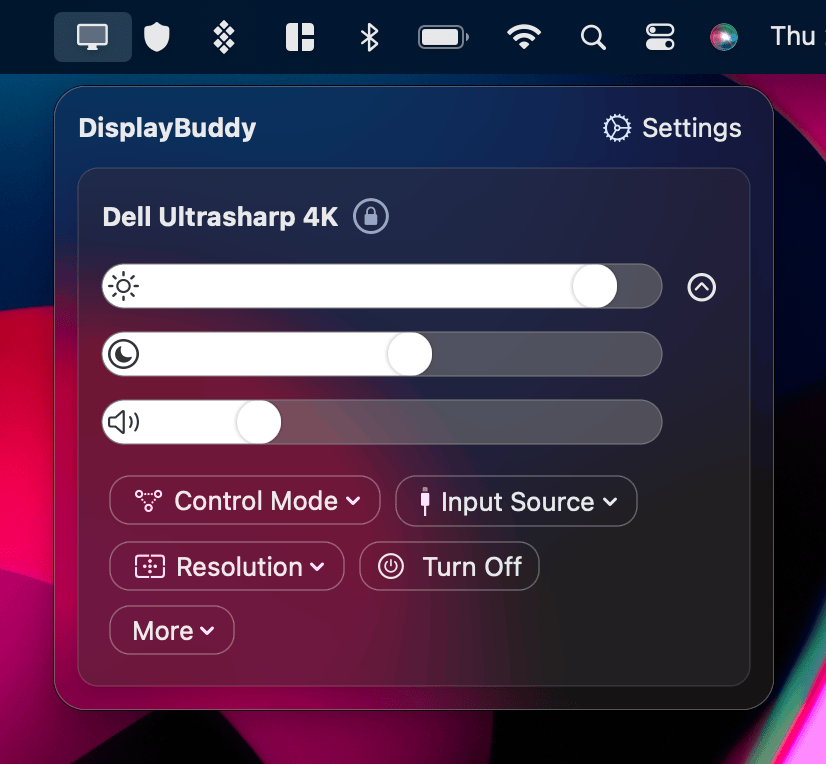
If you have multiple displays, Sync helps them stay perfectly in tune. When Sync is turned on, changing brightness, contrast, or volume on one display automatically adjusts the others.
How it Works
When you activate Sync, one display becomes the Host, and the others become Followers. Any change you make on the host is mirrored to the follower displays. This works for both sliders and keyboard shortcuts.
Note: Sync only follows settings that the host display supports. If the host only supports brightness, but the follower supports contrast as well, only brightness will be synced.
Uses
- Consistent brightness across all displays while working.
- Simpler control: Just adjust one screen and others follow.
- Automatic matching for color-sensitive or productivity setups.
Offsets
Not all displays are created equal — 100% brightness on one might look like 70% on another. Offsets let you fine-tune how much each follower adjusts relative to the host.
For example, if your MacBook Pro at 100% is too bright compared to your external monitor, you can set an offset so that when the external monitor is at 100%, your MacBook display goes to only 70%.
Activating Sync
- Main UI: Click Sync in the main window — your active display becomes the host.
- Presets: You can include Sync in any Preset.
- Keyboard Shortcuts: If a preset has Sync enabled, you can trigger it with a shortcut.
Next, learn more about saving your favorite setups with Presets or automate them with Schedules.
DisplayBuddy
for macOS 10.13+
Take control of your monitors
Control brightness, contrast, volume, and much more.
Buy NowLifetime license • 7-day refund on full-price purchases