Dell Display Manager Alternative for Mac | DisplayBuddy
Compare DisplayBuddy vs Dell Display and Peripheral Manager for Mac. Keyboard brightness control, presets, and support for every monitor brand, not just Dell.
If you own a Dell monitor and use a Mac, you have two options for controlling your display settings:
Dell Display and Peripheral Manager (DDPM): Dell's free, official software for managing select Dell monitors on Windows and macOS
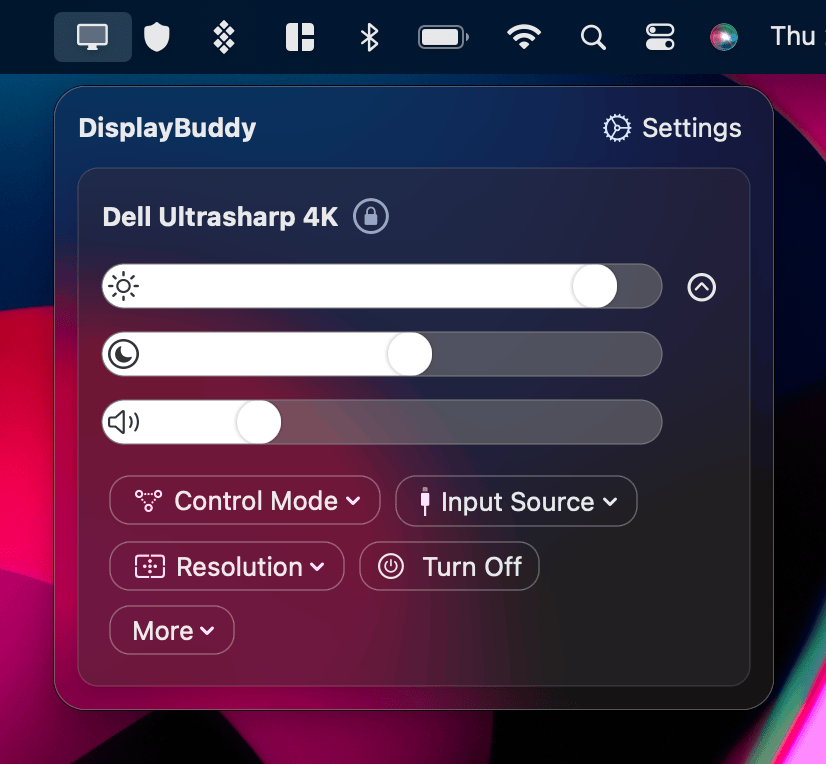
DisplayBuddy: A Mac and Windows app that controls brightness, contrast, and volume on Dell monitors and virtually every other external monitor brand
Feature Comparison: DisplayBuddy vs DDPM
| Feature | DisplayBuddy | Dell DDPM |
|---|---|---|
| Mac Support | ✅ Yes | ⚠️ Limited (MacBook Air, Mac Mini, Mac Pro only) |
| Windows Support | ✅ Yes | ✅ Yes |
| Dell Monitor Support | ✅ All Dell monitors with DDC/CI | ⚠️ Select Dell monitors only |
| Other Monitor Brands | ✅ Samsung, LG, ASUS, BenQ, ViewSonic, HP, AOC, MSI, and more | ❌ No |
| iMac Support | ✅ Yes | ❌ No |
| Brightness Control | ✅ Yes | ✅ Yes |
| Contrast Control | ✅ Yes | ✅ Yes |
| Volume Control | ✅ Yes | ✅ Yes |
| Keyboard Brightness/Volume Keys | ✅ Use your Mac keyboard keys to control external monitors | ❌ No |
| Presets | ✅ Save and switch between display configurations | ⚠️ Limited (Easy Arrange layouts only) |
| Window Management | ❌ No | ✅ Yes (Easy Arrange) |
| Display Layouts | ✅ Save monitor arrangements (horizontal, vertical) | ❌ No |
| KVM Switching | ❌ No | ⚠️ Yes, but slow (5-10 sec sync, buggy hotkeys) |
| Apple Silicon Native | ✅ Native from day one | ✅ Yes |
| macOS Update Compatibility | ✅ 2-3 updates per month, quick fixes after macOS releases | ❌ Typically months behind new macOS releases |
| Firmware Update Required | ✅ No | ❌ Yes, monitor must run latest firmware |
| App Weight | ✅ Lightweight | ⚠️ Heavier, background services, high CPU usage reported |
| Command Line (CLI) | ✅ Yes — view docs | ❌ No |
Dell DDPM: Pros and Cons
Pros
- Free software from Dell
- Built-in window management (Easy Arrange)
- KVM switching (USB and Network) on supported monitors
- Native Apple Silicon support
Cons
- Only works with select Dell monitors, no other brands
- Does not support iMac
- No keyboard brightness or volume key control
- Requires monitor firmware updates and DDC/CI setup before it works
- History of breaking after major macOS updates
- Frequently gets stuck on "Detecting Devices"
- High CPU usage in the background, causing fan noise and battery drain on MacBooks
DisplayBuddy: Pros and Cons
Pros
- Works with every external monitor brand, not just Dell
- Mac keyboard brightness and volume keys control your external monitors
- Presets let you save and switch between display configurations instantly
- Works on every Mac model including iMac
- No firmware updates or DDC/CI setup required
- 2 to 3 app updates per month with quick fixes after macOS releases
Cons
- No window management features
- No KVM switching
Why Mac Users Choose DisplayBuddy Over DDPM
Works with Every Monitor, Not Just Dell
- DDPM only controls Dell monitors, and only select models at that
- If you have a mixed setup (say a Dell ultrawide and an LG side monitor) DDPM can only control the Dell
- DisplayBuddy controls every DDC/CI compatible monitor from Samsung, LG, ASUS, BenQ, ViewSonic, HP, AOC, MSI, Dell, and more, all from one app
Your Mac Keyboard Just Works
- One of the most requested features in Dell's own forums: controlling external monitor brightness with the keyboard
- DDPM does not support this
- DisplayBuddy maps your Mac's brightness and volume keys to your external monitors
- Adjusting brightness feels exactly like using a built-in Apple display
Presets Save Time
- Save your preferred brightness, contrast, and volume settings as presets and switch between them instantly
- Working during the day? One preset. Movie night with dimmed lights? Another. Presentation mode? A third.
- Presets is DisplayBuddy's most-used feature and DDPM does not offer anything equivalent for display settings
Survives macOS Updates
- Every fall, Apple releases a new version of macOS, and DDPM has a history of breaking after upgrades
- When macOS Sequoia launched in September 2024, DDPM stopped working entirely for many users. KVM, brightness control, and Easy Arrange all broke at once.
- After macOS Ventura, users reported display issues including blurry screens and broken DDPM functionality. While some of these may have been macOS bugs, DisplayBuddy continued to work perfectly through the same update.
- DisplayBuddy is available on both Mac and Windows, and ships 2 to 3 updates per month, including bug fixes, customer feedback solutions, and new features. When a macOS update requires changes, fixes ship quickly.
- You are never stuck without monitor control after upgrading your Mac
No Firmware Dance
- Before DDPM will even detect your monitor, you need to update the Dell monitor's firmware
- The firmware update process on Mac is confusing. Many users in Dell's community forums report difficulty figuring it out.
- DisplayBuddy uses standard DDC/CI and works immediately with no firmware updates required
Works on Every Mac
- DDPM only supports MacBook Air, Mac Mini, and Mac Pro. It does not support iMac at all.
- DisplayBuddy works on every Mac, including iMac, Mac Mini, MacBook Air, MacBook Pro, Mac Pro, and Mac Studio
What Is Dell Display and Peripheral Manager (DDPM)?
If you have searched for "Dell Display Manager" recently, you may have hit some confusing naming. Here is what happened:
- Dell Display Manager (DDM): Dell's original monitor control software for Windows, with a limited macOS version. DDM 2.3 and prior versions reached end of security support on June 24, 2025. Dell no longer provides updates or support for it.
- Dell Peripheral Manager (DPM): A separate app for Dell keyboards, mice, and webcams. DPM 1.7 and prior versions reached end of security support on May 15, 2025.
- Dell Display and Peripheral Manager (DDPM): The current replacement that merges both DDM and DPM into a single app. This is the only version Dell actively supports today.
DDPM for macOS supports:
- macOS 12, 13, 14, 15, and 26
- Apple Silicon Macs with M1, M2, M3, M4, and M5 processors
- MacBook Air, Mac Mini, and Mac Pro
- Does not support iMac
Limitations to know before installing:
- DDPM does not support iMac
- DDPM only works with select Dell monitors. The macOS compatibility list is significantly shorter than the Windows list.
- Your Dell monitor must have DDC/CI enabled and must be running the latest firmware before DDPM will detect it
- DDPM requires granting Accessibility, Screen Recording, and Automation permissions in macOS
- DDPM does not support using your Mac keyboard brightness or volume keys to control external monitors
How to Download DDPM for Mac
DDPM is available as a free download from Dell's support site. Search for "Dell Display and Peripheral Manager" and select macOS as the operating system.
Before installing, your Dell monitor's firmware must be up to date, DDC/CI must be enabled in the monitor's on-screen display menu, and your monitor model must be on Dell's macOS compatibility list. Without all three of these, DDPM will not detect your monitor.
Common Problems with DDPM on Mac
DDPM's macOS experience has been inconsistent since launch. These are the most frequently reported issues across Dell's community forums, Apple Support Communities, and MacRumors.
Monitor Not Detected
The most common complaint. DDPM launches but shows "Please connect a supported monitor" even when the monitor works fine otherwise. Common causes:
- Your Dell monitor model is not on the macOS compatibility list (check Dell's supported devices page before troubleshooting anything else)
- DDC/CI is not enabled in your monitor's OSD settings
- Monitor firmware is not up to date
- Some users have reported that the built-in HDMI port on M1 Macs does not support DDC/CI, which prevents DDPM from detecting the monitor
- You are using a docking station or adapter that blocks DDC/CI communication
- After macOS updates, DDPM's Screen Recording permission may need to be toggled off and back on in System Settings before DDPM can detect your monitor layout again
Background Resource Usage
Multiple Reddit users report DDPM consuming 15% CPU or more while running in the background, even when no settings are being changed. The app appears to constantly poll the USB-C connection to check if the monitor is still connected. This causes fan noise and battery drain on MacBooks. Some users have uninstalled DDPM entirely and switched to lighter alternatives for brightness control.
Breaks After macOS Updates
This has happened with multiple major macOS releases:
- macOS Sequoia (Sept 2024): DDPM stopped working. KVM, brightness control, and Easy Arrange all broke for many users.
- macOS Ventura: Users reported display issues including blurry screens after upgrading. While some of these may have been macOS bugs rather than DDPM bugs, DisplayBuddy worked perfectly through the same update.
Stuck on "Detecting Devices"
Multiple users report DDPM getting permanently stuck on the device detection screen after:
- Fresh installation
- Waking from sleep
- Disconnecting and reconnecting the monitor
- macOS updates
Limited Monitor Compatibility on Mac
This catches many users off guard:
- Dell's DDPM supports far fewer monitors on macOS than on Windows
- The Windows version supports hundreds of Dell monitor models
- The macOS version supports a much smaller subset
- Users frequently buy Dell monitors expecting DDPM to work, only to discover their specific model is not supported on Mac
Frequently Asked Questions
Does Dell Display Manager work on Mac?
The original Dell Display Manager (DDM) reached end of security support in June 2025 and is no longer supported. Its replacement, Dell Display and Peripheral Manager (DDPM), supports macOS 12 through 15 and macOS 26 on select Dell monitors. However, DDPM only works with certain Dell monitor models and only on MacBook Air, Mac Mini, and Mac Pro (no iMac support). For broader compatibility, DisplayBuddy works with Dell monitors and virtually any other external monitor brand.
What is the difference between DDM and DDPM?
DDM (Dell Display Manager) was Dell's original monitor control software. DDPM (Dell Display and Peripheral Manager) is its replacement, combining DDM and the separate Dell Peripheral Manager into a single app. DDM 2.3 and prior reached end of security support in June 2025, and DPM 1.7 and prior reached end of support in May 2025. If you still have DDM installed, Dell recommends upgrading to DDPM.
Why is DDPM not detecting my Dell monitor on Mac?
The most common causes: your specific Dell monitor may not be on DDPM's macOS compatibility list (which is shorter than the Windows list), DDC/CI may not be enabled in your monitor's OSD settings, your monitor firmware may need updating, some users have reported that the HDMI port on M1 Macs does not support DDC/CI, and a docking station or adapter may be blocking DDC/CI signals. If DDPM does not work with your setup, DisplayBuddy can control your Dell monitor using the same DDC/CI protocol without needing Dell's software.
Does DDPM work with non-Dell monitors?
No. DDPM is designed exclusively for Dell monitors and peripherals. If you use monitors from other brands, you need a third-party app like DisplayBuddy.
Is Dell Display Manager free?
Yes, DDPM is free software from Dell. DisplayBuddy is a paid app with a one-time lifetime license. Mac users get a 7-day return policy, and Windows users get a 7-day free trial.
How do I control Dell monitor brightness from my Mac keyboard?
DDPM does not support using Mac keyboard brightness or volume keys to control external monitors. DisplayBuddy maps your Mac's built-in brightness and volume keys directly to your external monitors, including Dell monitors.
What happened to Dell Display Manager?
Dell Display Manager (DDM) has been replaced by Dell Display and Peripheral Manager (DDPM), which combines the old DDM and Dell Peripheral Manager into a single app. DDM 2.3 and prior reached end of security support on June 24, 2025, and DPM 1.7 and prior reached end of support on May 15, 2025. DDPM is the only version Dell actively supports today.
The Verdict
Most Dell monitor users on Mac end up needing a third-party app. Either because their specific Dell model is not supported by DDPM, because DDPM broke after a macOS update, or because they want keyboard shortcut control that DDPM does not offer.
DisplayBuddy gives you:
- Mac keyboard brightness and volume keys that work with your external monitors
- Presets to save and switch between display configurations
- Every monitor brand supported, not just Dell
- Frequent updates: 2 to 3 releases per month with quick fixes after macOS updates
- No firmware dependency: works immediately without updating your monitor
- iMac support (which DDPM does not offer)
DDPM does offer window management (Easy Arrange) and KVM switching, which DisplayBuddy does not. However, Mac users on Reddit widely report that Easy Arrange feels clunky compared to native macOS alternatives like Rectangle or Magnet, and that DDPM's software KVM switching is slow (5 to 10 seconds to sync) compared to using the monitor's physical input switch.
Compare DisplayBuddy With Other Apps
Related guide: How to control external monitor brightness on Mac
DisplayBuddy
for macOS 10.13+
Take control of your monitors
Control brightness, contrast, volume, and much more.
Buy NowLifetime license • 7-day refund on full-price purchases