LG OnScreen Control vs DisplayBuddy: Which Is Better?
LG OnScreen Control vs DisplayBuddy compared for Mac and Windows. See which app actually controls your LG monitor brightness, presets, and more.
If you own an LG monitor and want to control brightness, contrast, and volume from your Mac or Windows PC without touching the monitor buttons, you have two main options: LG OnScreen Control, LG's free official software, and DisplayBuddy, a third-party app built for daily monitor control on Mac and Windows.
Here is the short version:
LG OnScreen Control is free and LG-only. The Mac version is unreliable: persistent detection failures, USB-C crashes, most features stripped leaving only Screen Split, Rosetta performance issues, and no keyboard brightness key support.
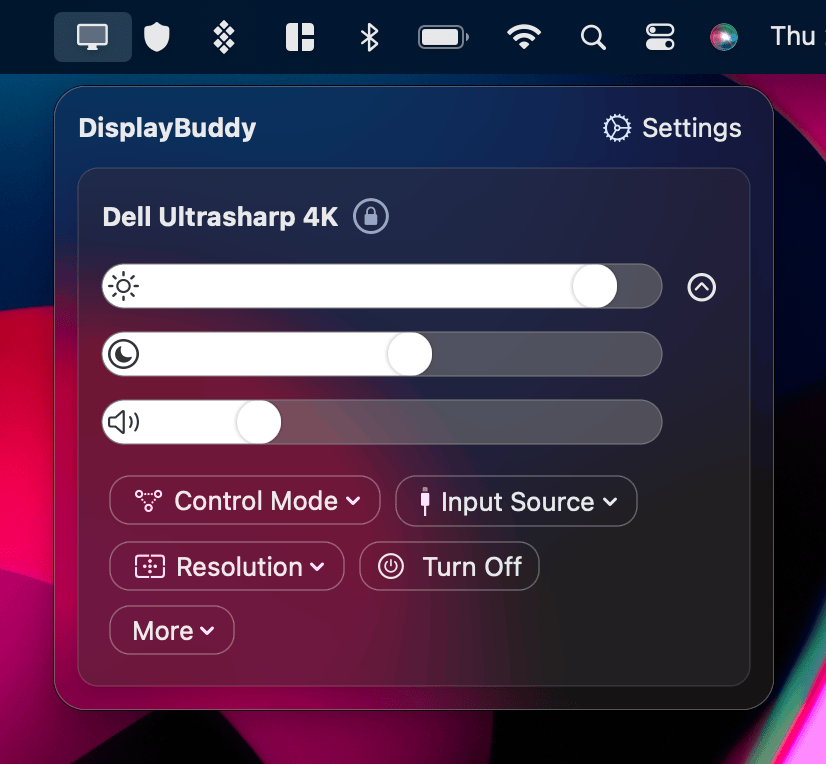
DisplayBuddy works on Mac and Windows with LG monitors and any other DDC/CI-compatible display. It adds keyboard brightness keys so you never touch a slider again, Presets to save and restore your entire multi-monitor setup with one click, Sync to keep every display in step automatically, and Schedules to change your settings by time of day, sunrise and sunset, battery state, or whether your Mac is locked — none of which LG OnScreen Control offers on any platform.
For most Mac users, and for anyone with more than one monitor brand, DisplayBuddy is the better choice. Here is the full breakdown.
LG OnScreen Control vs DisplayBuddy: Feature Comparison
| Feature | DisplayBuddy | LG OnScreen Control |
|---|---|---|
| LG monitor support | ✅ Yes | ✅ Yes |
| Non-LG monitor support | ✅ Any DDC/CI monitor | ❌ No — LG only |
| Mac support | ✅ Full native macOS app | ⚠️ Limited — fewer features than Windows |
| Windows support | ✅ Yes | ✅ Yes |
| Brightness and contrast control | ✅ Yes | ✅ Yes |
| Volume control | ✅ Yes | ⚠️ Limited on Mac |
| Keyboard brightness keys | ✅ Yes | ❌ No |
| Brightness sync across all monitors | ✅ Yes | ❌ No |
| Multi-monitor Presets | ✅ Yes | ❌ No |
| Save and restore display layout | ✅ Yes | ❌ No |
| Application-based picture mode switching | ❌ No | ✅ Yes (My Application Presets) |
| Schedules | ✅ Yes | ❌ No |
| Siri integration | ✅ Yes | ❌ No |
| Apple Shortcuts support | ✅ Yes | ❌ No |
| macOS widgets | ✅ Yes | ❌ No |
| Spotlight integration | ✅ Yes | ❌ No |
| Screen Split (window snapping) | ❌ No | ✅ Yes |
| Monitor firmware updates | ❌ No | ✅ Yes |
| Apple Silicon native | ✅ Native | ❌ Rosetta only — causes high CPU |
| Works without LG monitor | ✅ Yes | ❌ No |
| Command Line (CLI) | ✅ Yes — view docs | ❌ No |
| Free trial | ✅ 7-day free trial (Windows) | ❌ No |
| Money-back guarantee | ✅ 7 days (Mac) | ❌ No |
Why Mac and Windows Users Choose DisplayBuddy Over LG OnScreen Control
Works With Every Monitor You Own
LG OnScreen Control only works with LG monitors. If you have one LG and one Dell, or one LG and one Samsung, LG OnScreen Control controls exactly one of them and ignores the rest. DisplayBuddy works with any DDC/CI-compatible display, regardless of brand. Every monitor appears in the same interface, controlled with the same shortcuts, managed under the same Presets.
For users with mixed-brand setups, this settles the comparison before anything else.
Keyboard Brightness Keys That Actually Work
DisplayBuddy lets you use the brightness keys on your Mac keyboard to adjust your external LG monitor directly. LG OnScreen Control does not support keyboard brightness keys on Mac. This is one of the most consistently reported limitations in Mac user forums and on Amazon product pages for LG monitors: the answer is always no.
Presets: Save Your Entire Setup, Switch Instantly
LG OnScreen Control has "My Application Presets," which automatically switches the picture mode when you open a specific program. That covers one specific scenario: switching picture modes per app.
DisplayBuddy Presets are a different thing entirely. They save your complete multi-monitor configuration: brightness, contrast, volume, input source, display layout, and resolution across every connected monitor simultaneously. One click switches everything.
With DisplayBuddy Presets, you can:
- Save all settings across every connected monitor as a named Preset
- Switch between setups like "Work Mode" and "Evening Mode" with a single click or keyboard shortcut
- Trigger Presets via Siri, Apple Shortcuts, Spotlight, or Control Center widgets
- Apply across all monitors at once, with no per-screen adjustment needed
Mac users specifically highlight this gap: LG OnScreen Control frequently resets brightness settings after the Mac goes to sleep, and there is no way to restore them with a single action. DisplayBuddy retains and restores settings reliably via Presets.
Sync: One Slider Controls Every Monitor
With multiple monitors, keeping brightness consistent across displays is a constant manual task. DisplayBuddy Sync eliminates it entirely. Adjust any one monitor and all others follow automatically. LG OnScreen Control has no equivalent.
Sync works through the app, keyboard shortcuts, or Siri. Once active, it runs in the background with no maintenance.
Schedules: Your Displays Change Automatically
DisplayBuddy Schedules automate display settings based on triggers you configure once:
- Time of day
- Sunrise and sunset
- Mac lock and unlock
- Dark Mode toggle
- Monitor connected or disconnected
- Charging state, with different settings on battery versus plugged in
LG OnScreen Control has no equivalent. Every brightness change is manual.
A Native macOS Interface on Apple Silicon
DisplayBuddy is built natively for Apple Silicon. It feels like a macOS app because it is one: the interface mirrors Control Center, animations are fluid, and the app is lightweight.
LG OnScreen Control runs via Rosetta on Apple Silicon Macs, which means it is an Intel app being translated at runtime. Mac users have reported CPU usage spiking as high as 100% with OnScreen Control running in the background. The app also causes focus-stealing, jumping in front of games and other full-screen apps unexpectedly. Neither issue affects DisplayBuddy.
What Is LG OnScreen Control?
LG OnScreen Control is LG's official monitor management software for compatible LG monitors. It is available for both Windows and Mac and is downloaded from the support page for each specific monitor model on lg.com.
Its main features include:
- Monitor Control: Adjust brightness, contrast, volume, picture mode, and aspect ratio directly from your computer
- Screen Split: Divide your monitor screen into custom layout zones for window snapping and multitasking
- My Application Presets: Automatically switch the picture mode or screen layout when specific programs are launched
- Game Mode Settings: Gaming-specific controls including black stabilizer and response time settings
- Monitor firmware updates: Check for and install firmware updates for connected LG monitors
LG OnScreen Control is free, supports up to 4 connected monitors, and requires an LG monitor to function. The features available vary by monitor model and some only work on specific cable connections. The Mac version has fewer features than the Windows version.
LG also publishes two related tools that often cause confusion:
LG Screen Manager is a separate app available on the Mac App Store. It is primarily a firmware updater for LG UltraFine monitors. It does not include brightness sliders, Screen Split, or the picture controls found in OnScreen Control.
LG UltraGear Control Center is separate software for LG UltraGear gaming monitors. It covers gaming-specific controls like crosshair overlays and display modes. It is a different product from OnScreen Control, aimed at a different monitor lineup.
How to Download LG OnScreen Control
LG OnScreen Control is not available on the Mac App Store or as a universal download. It is distributed per monitor model from LG's support website:
- Go to lg.com and navigate to the support page for your specific monitor model
- Select the Software, Firmware, and Drivers tab
- Download the OnScreen Control version listed for your operating system (Windows or Mac)
- Install the downloaded file and restart your computer if prompted
- On Mac: open System Settings, go to Privacy and Security, then Accessibility, and grant permission to both OnScreen Control and OSCMultiMonitor
The version available depends on your monitor model, and some models have a version that runs well on current macOS while others do not. If your monitor is not detected after installation, see the Common Problems section below.
If you want an app that installs in one step, detects your LG monitor automatically without model-specific downloads, and works on Mac and Windows out of the box, DisplayBuddy is available at displaybuddy.app with a 7-day free trial on Windows and a 7-day money-back guarantee on Mac.
Common Problems With LG OnScreen Control on Mac
The Mac Version Is Far Weaker Than Windows
The most consistent complaint about LG OnScreen Control across Mac user communities is that the Mac version is an afterthought. Users with LG ultrawide monitors on Monterey and later report that all control panels appear briefly at startup, then disappear within seconds, leaving only Screen Split. The commonly cited workaround is switching to a direct HDMI connection — which is not possible on MacBooks that only have USB-C ports.
This is not an isolated report. It has been documented across multiple macOS versions and multiple Mac hardware generations and remains unresolved.
High CPU Usage and Focus Stealing on Apple Silicon
Because LG OnScreen Control is an Intel app, it runs via Rosetta on all Apple Silicon Macs. Mac users report CPU usage climbing as high as 100% with OnScreen Control running in the background, particularly on M1 and M2 machines. A separate issue is focus-stealing: the app unexpectedly jumps in front of full-screen games and other apps, interrupting work. Neither issue affects DisplayBuddy, which is native on Apple Silicon.
"No Connected Monitor" Errors
LG's own support documentation confirms this. After launching OnScreen Control on Mac, the app shows "There is no connected monitor" even though the monitor is physically connected and working. The common workaround is to unplug and replug the monitor cable after launching the app. This frequently needs to be repeated after every restart.
App Crashes When Connected via USB-C
OnScreen Control crashes on launch for many MacBook users connected via USB-C. The same setup connected via HDMI may work, but USB-C, the standard connection for modern MacBooks, triggers the crash. This has been reported in LG's own community forums across MacBook Pro models from 2017 through current M-series machines.
Settings Reset After Sleep
Mac users report that brightness and other display settings configured in LG OnScreen Control do not survive sleep and wake reliably. After the Mac wakes, the monitor reverts to defaults. Because OnScreen Control has no multi-monitor Presets equivalent, restoring those settings requires manually readjusting every slider each time.
No Keyboard Brightness Keys on Mac
LG OnScreen Control does not map the keyboard brightness keys to external monitors on Mac. Users must open the app and adjust sliders manually every time. DisplayBuddy handles this directly from the keyboard.
Slow macOS Compatibility Updates
LG OnScreen Control updates infrequently on Mac. New macOS versions can break compatibility and fixes may take months to arrive. Users on Sequoia have reported regressions not present on Sonoma.
Frequently Asked Questions
What does LG OnScreen Control do?
LG OnScreen Control is LG's official monitor software for compatible LG monitors. It lets you adjust brightness, contrast, volume, and picture mode from your computer without touching the monitor buttons, and includes Screen Split for dividing the screen into layout zones. On Mac, many of these features are unavailable or unreliable due to persistent compatibility issues with current macOS versions. It also does not work with any non-LG monitor. DisplayBuddy is a comprehensive alternative that works on Mac and Windows with LG monitors and any other display brand.
Can you use an LG monitor with a Mac?
Yes. LG monitors work with Mac via HDMI, DisplayPort, and USB-C connections. For brightness and display control, you have a few options: LG OnScreen Control (LG's official software, with significant limitations on Mac), macOS's native Display settings (basic brightness slider available for some LG monitors on Sequoia in HDR mode only), or a dedicated third-party app. DisplayBuddy gives you full brightness and contrast control, keyboard brightness key support, Presets, Sync, and Schedules on Mac with LG monitors and any other brand.
How do I open LG OnScreen Control?
On Mac, LG OnScreen Control appears as a menu bar icon after installation. Click the icon and select "Start Program" to open the control panel. If the icon is not visible, open Finder, go to Applications, and launch OnScreen Control from there. On first launch, you need to grant Accessibility permissions to both OnScreen Control and OSCMultiMonitor in System Settings under Privacy and Security.
How do I uninstall LG OnScreen Control on Mac?
Open Finder and go to Applications. Drag the OnScreen Control app to the Trash. Then open System Settings, go to Privacy and Security, then Accessibility, and remove both OnScreen Control and OSCMultiMonitor from the permissions list. Empty the Trash to complete the removal.
Where can I download LG Control Center?
LG does not have a product called "LG Control Center" for monitors. The monitor control software is called LG OnScreen Control, and it is downloaded from the support page for your specific monitor model at lg.com. There is no single universal download link: search for your monitor model number and download from the Software and Drivers tab on that model's support page.
What is the difference between LG OnScreen Control and LG Screen Manager?
LG OnScreen Control is the full display management software with brightness and contrast control, Screen Split, application presets, and Game Mode. It is downloaded per monitor model from lg.com. LG Screen Manager is a separate app on the Mac App Store designed mainly to update firmware on LG UltraFine monitors. It does not include brightness controls, Screen Split, or any of the picture settings found in OnScreen Control.
Is LG OnScreen Control free?
Yes. LG OnScreen Control is free to download from LG's support website. It requires a compatible LG monitor and does not work with monitors from other brands. DisplayBuddy is a comprehensive alternative to LG OnScreen Control for Mac and Windows users who want full monitor control across any display brand, with a 7-day free trial on Windows and a 7-day money-back guarantee on Mac.
Does macOS Sequoia control LG monitor brightness natively?
Partially. macOS Sequoia added a brightness slider in System Settings for some LG monitors, but it uses software dimming only — it does not send DDC/CI hardware commands to the monitor and does not true-sync with the monitor's actual backlight levels. For full DDC brightness control, keyboard shortcuts, Presets, and Sync across all monitors, a dedicated app like DisplayBuddy is the more reliable solution.
The Verdict: LG OnScreen Control vs DisplayBuddy
LG OnScreen Control works well on Windows with an LG-only setup, and it is the right tool if you specifically need to update your LG monitor's firmware or use Screen Split for window snapping. Outside of those cases, the comparison is not close.
The problems are specific to Mac. The Mac version is unreliable: it fails to detect monitors, crashes on USB-C, strips most features down to Screen Split only, runs via Rosetta causing high CPU usage and focus-stealing, resets settings after sleep, and has no keyboard brightness key support. It also does nothing for any non-LG monitor in your setup.
For free alternatives, MonitorControl covers basic DDC brightness control on Mac at no cost, though it is mostly in maintenance mode. BetterDisplay is worth considering if you specifically need HiDPI scaling to fix blurry text on LG 1440p monitors connected to a MacBook.
For most Mac users who want reliable daily monitor control, DisplayBuddy is the better choice. It works natively on Apple Silicon, supports LG monitors and every other brand, adds Presets, Sync, Schedules, keyboard shortcuts, and Siri integration that OnScreen Control does not offer, and installs in one step without model-specific downloads.
Consider LG OnScreen Control if you are on Windows, have only LG monitors, and have no need for keyboard shortcuts, Presets, Sync, or Schedules. Consider DisplayBuddy if you are on Mac, if you have any non-LG monitors in your setup, or if you want reliable daily monitor control that works the way macOS should.
DisplayBuddy is a one-time purchase starting at $24.99, with lifetime updates, a 7-day free trial on Windows, and a 7-day money-back guarantee on Mac.
Compare DisplayBuddy With Other Apps
Related guide: How to control external monitor brightness on Mac
DisplayBuddy
for macOS 10.13+
Take control of your monitors
Control brightness, contrast, volume, and much more.
Buy NowLifetime license • 7-day refund on full-price purchases