Control your monitors
from Windows.
No more clunky buttons. Adjust brightness, contrast, and volume of your external displays — right from your taskbar.
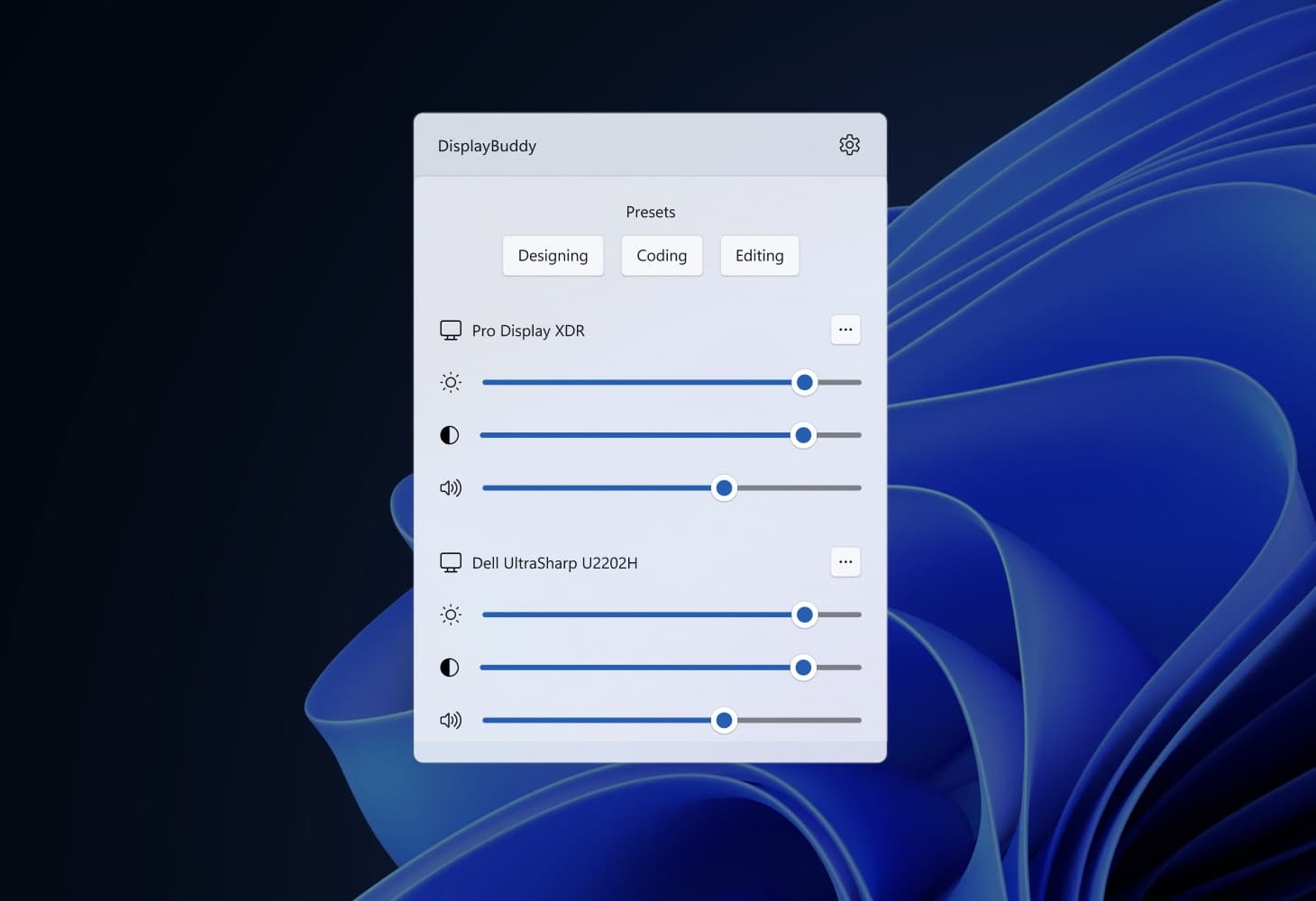
"This new display app for Windows 11 is the most important app ever"

'%20/%3e%3c/svg%3e)
'%3e%3cg%20transform='matrix(4.579965,0,0,-4.579965,468.34291,456.8459)'%3e%3cpath%20fill='currentColor'%20d='m%200,0%20c%20-8.01,0%20-15.264,-3.249%20-20.516,-8.505%20-5.254,-5.244%20-8.501,-12.502%20-8.501,-20.516%200,-8.008%203.247,-15.261%208.501,-20.507%205.252,-5.249%2012.506,-8.504%2020.516,-8.504%208.012,0%2015.27,3.255%2020.514,8.504%205.252,5.246%208.492,12.499%208.492,20.507%200,8.014%20-3.24,15.272%20-8.492,20.516%20C%2015.27,-3.249%208.012,0%200,0%20m%200,3.516%20c%2017.965,0%2032.531,-14.568%2032.531,-32.537%200,-17.963%20-14.566,-32.529%20-32.531,-32.529%20-17.963,0%20-32.535,14.566%20-32.535,32.529%200,17.969%2014.572,32.537%2032.535,32.537'%20/%3e%3c/g%3e%3cg%20transform='matrix(4.579965,0,0,-4.579965,397.87238,588.54693)'%3e%3cpath%20fill='currentColor'%20d='m%200,0%20c%200,1.896%20-1.258,2.973%20-3.039,2.973%20l%20-1.09,0%200,-5.948%201.059,0%20C%20-1.414,-2.975%200,-2.075%200,0%20M%2019.389,-2.14%2011.359,-8.463%204.02,-2.685%20C%202.961,-5.229%200.402,-6.996%20-2.545,-6.996%20l%20-6.281,0%200,13.992%206.281,0%20c%203.293,0%205.666,-2.094%206.563,-4.325%20l%207.341,5.772%202.719,-2.14%20-6.728,-5.288%201.293,-1.012%206.726,5.285%202.723,-2.134%20-6.727,-5.294%201.291,-1.014%206.733,5.295%200,4.855%204.881,0%200,-9.908%204.869,0%200,-4.101%20-9.75,0%200,4.873%20z%20m%2015.933,-0.774%204.867,0%200,-4.099%20-9.753,0%200,14.009%204.886,0%200,-9.91%20z'%20/%3e%3c/g%3e%3c/g%3e%3c/svg%3e)
%20scale(2.0134)'%20fill='currentColor'%3e%3cpath%20d='M20.78%2032.93c.41%201.03.28%202.35.08%203.15-.35%201.42-1.31%202.87-4.15%202.87-2.66%200-4.28-1.54-4.28-3.86v-4.13H1v3.28c0%209.5%207.47%2012.37%2015.48%2012.37%207.7%200%2014.04-2.62%2015.05-9.73.52-3.68.14-6.09-.04-6.98-1.8-8.92-17.96-11.58-19.17-16.57a5.46%205.46%200%2001-.04-2.24c.3-1.37%201.23-2.86%203.89-2.86%202.5%200%203.95%201.54%203.95%203.86v2.64h10.63v-3C30.75%202.45%2022.42%201%2016.4%201%208.82%201%202.63%203.51%201.5%2010.46c-.3%201.9-.35%203.6.1%205.74%201.85%208.7%2016.98%2011.22%2019.18%2016.73'%20id='a'/%3e%3cpath%20d='M46.6%202.36l-7.9%2042.59h11.51L56.04%206.3h.24l5.67%2038.65H73.4l-7.85-42.6zm64.35%200l-5.25%2032.56h-.25l-5.24-32.56H82.84l-.94%2042.59h10.66l.26-38.29h.24l7.11%2038.29h10.81l7.12-38.28h.23l.27%2038.28h10.65l-.94-42.6z'/%3e%3cuse%20height='100%25'%20width='100%25'%20xlink:href='%23a'%20transform='translate(138.47%20-.08)'/%3e%3cpath%20d='M195%2038.57c2.96%200%203.87-2.04%204.08-3.08.09-.46.1-1.08.1-1.63V2.36h10.78v30.53a37%2037%200%2001-.1%202.8c-.75%207.95-7.03%2010.53-14.86%2010.53-7.84%200-14.12-2.58-14.87-10.53-.03-.42-.11-2.02-.1-2.8V2.35h10.78v31.5c-.01.56.01%201.18.1%201.64.2%201.04%201.12%203.08%204.09%203.08m52.08-36.21l.58%2033.43h-.23l-9.8-33.43h-15.8V44.5h10.47l-.58-34.59h.23l10.51%2034.59h15.17V2.36zm36.75%2035.77c3.08%200%204.16-1.95%204.35-3.1.09-.47.1-1.07.1-1.6v-6.2h-4.37v-6.2H299v11.42c0%20.8-.02%201.38-.15%202.8-.7%207.76-7.43%2010.53-14.98%2010.53-7.55%200-14.27-2.77-14.98-10.53-.12-1.42-.15-2-.15-2.8V14.53c0-.76.1-2.1.18-2.8.95-7.97%207.4-10.53%2014.95-10.53%207.55%200%2014.17%202.54%2014.95%2010.52.14%201.36.1%202.8.1%202.8v1.43h-10.74v-2.39s0-1-.13-1.62c-.2-.94-1-3.1-4.26-3.1-3.1%200-4.01%202.05-4.24%203.1-.13.56-.18%201.32-.18%202.01v19.47c0%20.54.02%201.14.1%201.62.2%201.14%201.28%203.09%204.36%203.09'/%3e%3c/g%3e%3c/svg%3e)


'%3e%3cg%20fill='currentColor'%20transform='matrix(1.5180439,0,0,1.5180439,-28.149474,-249.71011)'%3e%3cg%20transform='translate(106.93201,508.32201)'%3e%3cpath%20d='m%200,0%20c%200,14.524%20-11.773,26.297%20-26.297,26.297%20-0.396,0%20-0.79,-0.01%20-1.182,-0.028%20l%20-5.379,-14.784%204.685,0%20c%202.787,0%204.289,-2.146%203.335,-4.767%20l%20-6.635,-18.234%20-5.571,10e-4%207.12,19.544%20-4.189,0%20-7.12,-19.544%20-5.573,0%208.372,23%2010e-4,0%205.036,13.841%20C%20-44.471,22.228%20-52.594,12.063%20-52.594,0%20c%200,-12.421%208.613,-22.83%2020.192,-25.583%20l%204.88,13.411%200.004,0%208.609,23.657%2010.261,0%20c%202.79,0%204.291,-2.146%203.337,-4.767%20l%20-5.83,-16.015%20c%20-0.444,-1.22%20-1.869,-2.218%20-3.167,-2.218%20l%20-7.396,0%20-5.374,-14.77%20c%200.259,-0.007%200.52,-0.012%200.781,-0.012%20C%20-11.773,-26.297%200,-14.523%200,0'%20/%3e%3c/g%3e%3cg%20transform='translate(96.546997,516.36501)'%3e%3cpath%20d='m%200,0%20-4.187,0%20-5.864,-16.089%204.187,0%20L%200,0'%20/%3e%3c/g%3e%3c/g%3e%3c/g%3e%3c/svg%3e)
First-class support for third party displays.
Get the ultrafine experience with any monitor. DisplayBuddy gives you complete control over all your displays on Windows.
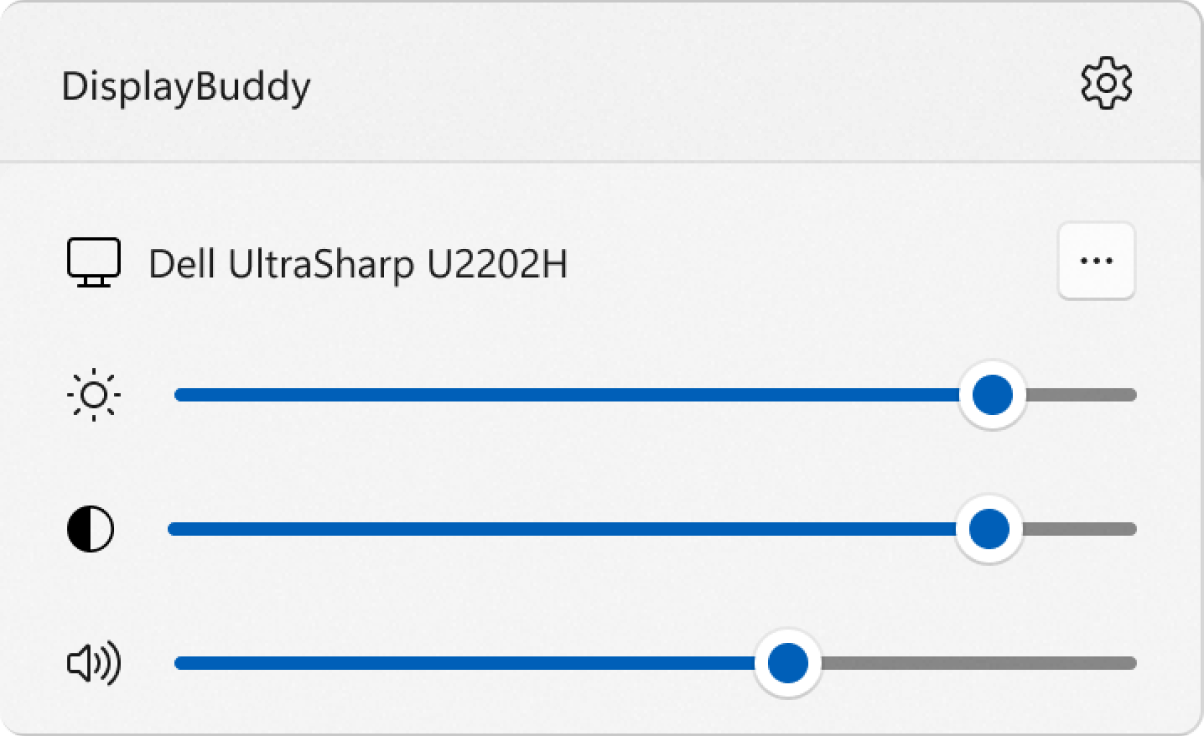
Control Display Settings
Control the real brightness, contrast & volume of your external displays — without touching any buttons.
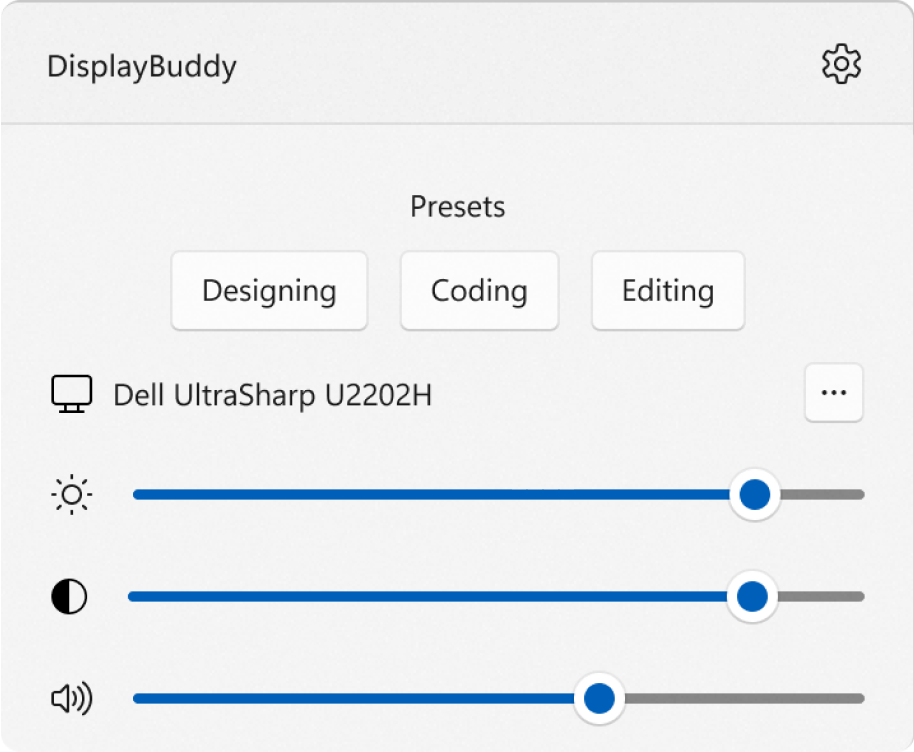
Create Presets
Save settings across multiple displays and restore them later with a single click. Perfect for work, movies, or gaming.
Keyboard Shortcuts
Control your display brightness using native keyboard shortcuts. Works seamlessly with Fn + brightness keys — just like your laptop display.
`
1
2
3
4
And so much more
Power features for professionals who demand more from their displays
Sync
Adjust brightness across all displays simultaneously with one slider
Input Sources
Switch between HDMI, DisplayPort, USB-C and more without touching your monitor

Apple Displays
Control real brightness for Apple Studio Display, Pro Display XDR, and Cinema Displays.
Read the guideResolution Control
Change display resolution and refresh rate directly from the app
Global Hotkeys
Create custom keyboard shortcuts to control any display setting
Extensively Tested
Works with Dell, LG, Samsung, BenQ, ASUS, and a ton of other brands
Loved by users worldwide
Who wanted their monitors to 'just work'
"If you've got an external display this app is absolutely life changing."

Khan Winter
Developer
"It works! Never touching the clunky button to adjust volume again."

Logan
User
"I have an external USB-C display that resets its brightness every time. Now all I need to do is click a button and the brightness is set to 100% in an instant. And it's amazing."

"Immediate buy! Works great with my Dell U2518D"

Tiago Martinho
User
"This is amazing and exactly what I was looking for! Great job!"

Michael Ebinger
User
"I started using DisplayBuddy in beta and I can never go back to hardware buttons now!"

Tushar
Developer
Ready to take control?
Join thousands of Windows users who love their monitors again.
- Free trial available
- Works on Windows 10 & 11
- Supports all major monitors
DisplayBuddy
for Windows 10 or 11
Try it for free on the Microsoft Store.
As seen in...

'%20fill='currentColor'/%3e%3crect%20x='1430.91'%20width='20'%20height='1368.35'%20transform='rotate(90%201430.91%200)'%20fill='currentColor'/%3e%3cpath%20d='M568.595%20332.872V81.2526H605.567V185.324H634.324V81.2526H671.296V332.872H634.324V223.323H605.567V332.872H568.595Z'%20fill='currentColor'/%3e%3cpath%20d='M708.057%20332.872L746.057%2081.2526L791.246%2081.2526L829.245%20332.872H793.3L786.453%20281.521H750.85L744.003%20332.872H708.057ZM755.985%20242.494H781.318L770.706%20157.936L769.678%20144.585H767.624L766.597%20157.936L755.985%20242.494Z'%20fill='currentColor'/%3e%3cpath%20d='M913.52%20335.61C903.021%20335.61%20894.063%20333.271%20886.646%20328.592C879.343%20323.8%20873.751%20317.295%20869.871%20309.079C866.106%20300.863%20864.223%20291.563%20864.223%20281.178V132.946C864.223%20122.676%20866.163%20113.432%20870.043%20105.216C874.036%2097.0002%20879.742%2090.4958%20887.159%2085.703C894.577%2080.9103%20903.363%2078.5139%20913.52%2078.5139C921.165%2078.5139%20928.012%2079.9403%20934.06%2082.7931C940.108%2085.646%20945.243%2089.5829%20949.465%2094.6038C953.801%2099.5107%20957.111%20105.273%20959.393%20111.892C961.675%20118.396%20962.816%20125.414%20962.816%20132.946V167.522H928.24V132.946C928.24%20127.697%20927.156%20123.303%20924.988%20119.766C922.82%20116.228%20919.225%20114.459%20914.204%20114.459C909.64%20114.459%20906.33%20116.285%20904.276%20119.937C902.222%20123.589%20901.195%20127.925%20901.195%20132.946V281.178C901.195%20286.199%20902.279%20290.536%20904.448%20294.187C906.73%20297.839%20909.982%20299.665%20914.204%20299.665C919.339%20299.665%20922.934%20297.896%20924.988%20294.358C927.156%20290.821%20928.24%20286.428%20928.24%20281.178V246.602H962.816V281.178C962.816%20291.449%20960.819%20300.692%20956.825%20308.908C952.831%20317.124%20947.126%20323.628%20939.708%20328.421C932.405%20333.214%20923.676%20335.61%20913.52%20335.61Z'%20fill='currentColor'/%3e%3cpath%20d='M1005.74%20332.872V81.2526H1042.72V165.126V169.234H1044.09L1045.8%20165.126L1074.56%2081.2526H1112.55L1078.66%20164.099L1117.01%20332.872H1079.01L1054.36%20218.188H1053.33L1042.72%20243.863V332.872L1005.74%20332.872Z'%20fill='currentColor'/%3e%3cpath%20d='M1151.24%20332.872V81.2526L1235.8%2081.2526V119.252L1188.21%20119.252V187.035H1222.45V224.008H1188.21V294.872H1235.8V332.872H1151.24Z'%20fill='currentColor'/%3e%3cpath%20d='M1280.35%20332.872V81.2526H1317.32C1339.46%2081.2526%201355.78%2087.4147%201366.28%2099.7389C1376.78%20111.949%201382.03%20129.979%201382.03%20153.828C1382.03%20167.978%201379.52%20180.246%201374.49%20190.63C1369.59%20200.9%201363.6%20208.431%201356.52%20213.224L1381.68%20332.872H1344.71L1323.83%20226.747H1317.32V332.872H1280.35ZM1317.32%20192.513C1324.17%20192.513%201329.59%20191.029%201333.59%20188.062C1337.58%20184.981%201340.43%20180.645%201342.14%20175.053C1343.86%20169.462%201344.71%20162.843%201344.71%20155.198C1344.71%20143.216%201342.71%20134.03%201338.72%20127.64C1334.84%20121.135%201327.71%20117.883%201317.32%20117.883V192.513Z'%20fill='currentColor'/%3e%3cpath%20d='M120.587%20332.958L120.587%2081.5244H157.532L157.532%20298.75H206.451L206.451%20332.958H120.587Z'%20fill='currentColor'/%3e%3cpath%20d='M238.58%20332.958L238.58%2081.5244L275.526%2081.5244V332.958H238.58Z'%20fill='currentColor'/%3e%3cpath%20d='M320.16%20332.958V81.5244L408.076%2081.5244V119.496L357.105%20119.496V185.519H391.314V223.491L357.105%20223.491V332.958H320.16Z'%20fill='currentColor'/%3e%3cpath%20d='M440.158%20332.958L440.158%2081.5244L524.653%2081.5244V119.496H477.103V187.229H511.312V224.175H477.103L477.103%20294.987H524.653V332.958H440.158Z'%20fill='currentColor'/%3e%3c/svg%3e)



'%3e%3cpath%20fill-rule='evenodd'%20clip-rule='evenodd'%20d='M54.9136%2031.7099H61.2346V0.895062H54.9136V31.7099ZM69.9259%2018.6728C73.5774%2017.4891%2076.2469%2014.0233%2076.2469%209.98148C76.2469%204.96542%2072.2816%200.895062%2067.1605%200.895062H62.8148V7.21605H67.9506C69.4953%207.05802%2070.8289%208.43741%2070.716%209.98148C70.8289%2011.841%2069.4953%2013.221%2067.9506%2013.142H62.8148V17.8827L71.9012%2031.7099H78.6173L69.9259%2018.6728ZM38.716%2019.858H53.3333V13.537H38.716V19.858ZM0%2031.7099H6.32099V0.895062H0V31.7099ZM18.963%2015.1173C19.6851%2014.1185%2021.1835%2012.6607%2021.3333%209.58642C21.1835%204.69425%2017.2887%200.895062%2012.642%200.895062H7.90123V7.21605H12.642C14.5072%207.05802%2015.826%208.43741%2015.8025%209.98148C15.826%2011.841%2014.5072%2013.221%2012.642%2013.142H7.90123V19.463H13.8272C15.6792%2019.384%2017.0537%2020.7633%2016.9877%2022.6235C17.0537%2024.167%2015.6792%2025.5469%2013.8272%2025.3889H7.90123V31.7099H13.8272C18.9027%2031.7099%2022.9136%2027.788%2022.9136%2022.6235C22.9136%2019.3655%2021.3063%2016.6302%2018.963%2015.1173ZM30.0247%2016.6975C30.1041%2011.0234%2034.5268%206.58394%2039.9012%206.42593C42.446%206.58394%2044.6938%207.49549%2046.6173%208.7963L50.963%205.24074C48.1207%202.13606%2044.2363%200.5%2039.9012%200.5C31.2496%200.5%2024.0988%207.6769%2024.0988%2016.6975C24.0988%2025.3225%2031.2496%2032.5%2039.9012%2032.5C44.2363%2032.5%2048.1207%2030.8634%2050.963%2027.7593L51.358%2027.3642L46.6173%2023.8086C45.0131%2025.3699%2042.6216%2026.4155%2039.9012%2026.5741C34.5268%2026.4155%2030.1041%2021.9761%2030.0247%2016.6975Z'%20fill='currentColor'/%3e%3c/g%3e%3cdefs%3e%3cclipPath%20id='clip0_1819_11124'%3e%3crect%20width='78.6173'%20height='32'%20fill='white'%20transform='translate(0%200.5)'/%3e%3c/clipPath%3e%3c/defs%3e%3c/svg%3e)
The Ultimate Windows DDC App for Monitor Control
Windows DDC app for hardware brightness control
Control Dell monitor brightness on Windows
Samsung monitor brightness control for Windows
LG monitor brightness adjustment on Windows
BenQ, ASUS, Acer monitor control via DDC/CI
Apple Studio Display brightness on Windows
Multi-monitor brightness sync for Windows
Keyboard shortcuts for monitor brightness
Monitor control for Windows 10
Bring modern display management to your Windows 10 setup. DisplayBuddy seamlessly integrates with Windows 10, allowing you to bypass clunky physical monitor buttons. Adjust brightness, contrast, and volume directly from your taskbar or using custom keyboard shortcuts.
Monitor control for Windows 11
Built for the modern Windows 11 experience, DisplayBuddy feels like a native part of your operating system. Enjoy fluid animations, dark mode support, and seamless integration with Windows 11's modern UI while gaining full hardware-level control over your external displays.
Questions? Answers.
Everything you need to know about DisplayBuddy for Windows