Monitorian Alternative for Windows: DisplayBuddy
Monitorian is free but limited. DisplayBuddy adds volume control, presets, input switching, and Mac support. 7-day free trial on Windows.
If you use an external monitor on Windows and want software brightness control, you have two main options:
Monitorian: A free, open-source brightness control app available on the Microsoft Store and GitHub
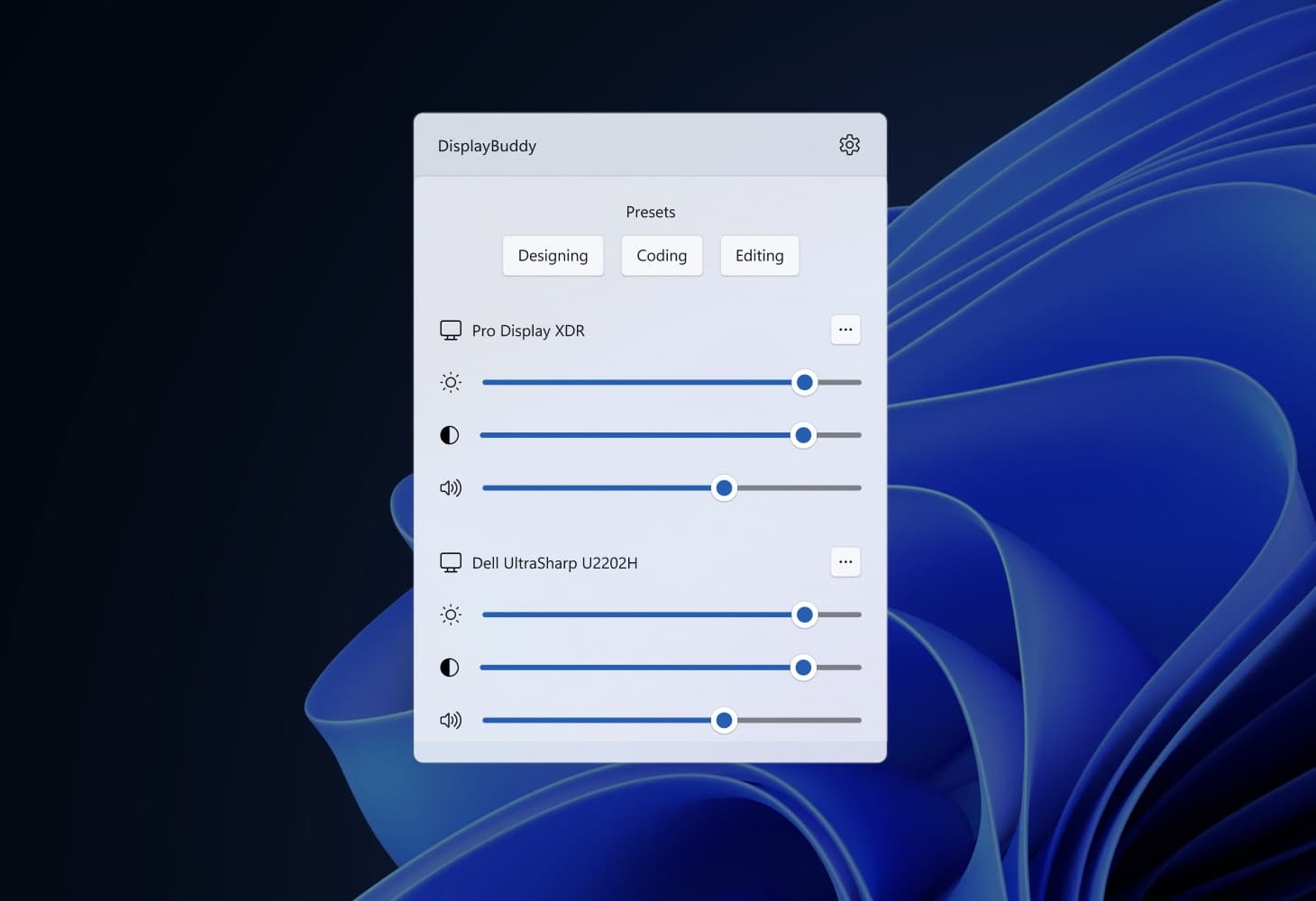
DisplayBuddy: A paid app for Windows and Mac that controls brightness, contrast, volume, and more across virtually every external monitor brand
Both apps use DDC/CI to communicate with your monitors. But the feature gap between them is significant. Here is how they compare.
Feature Comparison: DisplayBuddy vs Monitorian
| Feature | DisplayBuddy | Monitorian |
|---|---|---|
| Brightness Control | ✅ Yes | ✅ Yes |
| Contrast Control | ✅ Yes | ✅ Yes |
| Volume Control | ✅ Yes | ❌ No |
| Apple Studio Display (1st gen, 2022) | ✅ Yes - real brightness control | ❌ No |
| Apple Studio Display (2nd gen, 2026) | ✅ Yes - real brightness control | ❌ No |
| Apple Studio Display XDR | ✅ Yes - real brightness control | ❌ No |
| Apple Pro Display XDR | ✅ Yes - real brightness control | ❌ No |
| Presets | ✅ Save and switch between full display configurations | ❌ No saved presets |
| Keyboard Shortcuts | ✅ Full customizable hotkeys | ⚠️ Limited (paid subscription required) |
| Brightness Sync | ✅ Sync brightness across all displays | ❌ No |
| HDR Monitor Support | ✅ Yes | ❌ Brightness slider stops working when HDR is enabled |
| Input Source Switching | ✅ HDMI, DisplayPort, USB-C | ❌ No |
| Command Line | ❌ No | ❌ No |
| Windows Support | ✅ Yes | ✅ Yes |
| Mac Support | ✅ Yes | ❌ No |
| Monitor Compatibility | ✅ All DDC/CI monitors + Apple displays | ✅ DDC/CI monitors only |
Monitorian: Pros and Cons
Pros
- Free version available (open-source on GitHub)
- Extremely lightweight
- Available on the Microsoft Store
- DDC/CI brightness and contrast control
- Adjustable brightness range per monitor
- Command line support for automation (paid add-on in Microsoft Store version, free in GitHub version)
Cons
- Windows only, no Mac support
- No volume control
- No saved presets for display configurations
- Brightness control does not work when HDR is enabled
- Limited keyboard shortcut support
- Frequent monitor detection issues (especially after sleep and with certain GPU configurations)
- Interface feels dated on Windows 11
- Cannot control any Apple display — Studio Display (1st or 2nd gen), Studio Display XDR, and Pro Display XDR are all unsupported
DisplayBuddy: Pros and Cons
Pros
- Brightness, contrast, and volume control in one app
- Advanced presets to save and restore display configurations
- Full keyboard shortcut support
- Brightness sync across multiple displays
- Works on both Windows and Mac
- Modern, clean interface built for Windows 11
- Professional support and frequent updates (2 to 3 per month)
- Full support for all Apple displays on Windows: Studio Display (1st and 2nd gen), Studio Display XDR, and Pro Display XDR
Cons
- No window management features
Why Users Choose DisplayBuddy Over Monitorian
Apple Display Support: Monitorian Cannot Help
If you use an Apple display with a Windows PC, Monitorian is not an option. Apple displays — the Studio Display, the 2nd generation Studio Display (2026), the Studio Display XDR ($3,299), and the Pro Display XDR ($4,999) — do not use the DDC/CI protocol. Apple uses a proprietary USB-based protocol for brightness communication, and Monitorian is strictly a DDC/CI app.
This means Monitorian cannot control any Apple display at all:
- Apple Studio Display (1st gen, 2022) — not supported
- Apple Studio Display (2nd gen, 2026) — not supported
- Apple Studio Display XDR ($3,299, launched March 2026) — not supported
- Apple Pro Display XDR ($4,999) — not supported
DisplayBuddy supports all four Apple displays on Windows. It speaks Apple's native USB protocol directly over Thunderbolt or USB-C, with no Apple Boot Camp drivers required. If you connected a $3,299 Studio Display XDR or a $4,999 Pro Display XDR to your Windows PC, DisplayBuddy is the only easy solution for controlling Apple display brightness on Windows.
Volume and Contrast Control
If your external monitor has built-in speakers or a headphone jack, Monitorian cannot help. You still need to reach behind your monitor and use the physical buttons. DisplayBuddy controls brightness, contrast, and volume from one interface.
Advanced Presets
One of DisplayBuddy's most popular features is Presets. Save your preferred brightness, contrast, and volume settings as a preset and switch between them instantly.
- Working during the day with bright lights? One preset.
- Movie night with dimmed lights? Another.
- Presentation mode for a meeting? A third.
Monitorian allows you to set an adjustable brightness range per monitor, but it does not offer saved presets that you can name and switch between.
HDR Monitor Compatibility
When Windows HDR is enabled, Monitorian's brightness slider stops working entirely. This is one of the most reported issues on Monitorian's GitHub page, and it remains only partially addressed (see Common Problems below for details).
DisplayBuddy maintains full brightness control even when Windows HDR is enabled — something Monitorian cannot do.
Works on Mac and Windows
Monitorian is Windows-only. DisplayBuddy runs on both Mac and Windows with a single license, same interface and feature set on both platforms.
Full Keyboard Shortcut Support
DisplayBuddy offers fully customizable keyboard shortcuts for brightness, contrast, and volume. Monitorian has basic hotkey support, but it is not customizable to the same degree.
What Is Monitorian?
Monitorian is a free, open-source Windows app created by developer emoacht. It lets you adjust the brightness and contrast of external monitors using DDC/CI, the same protocol that DisplayBuddy and other monitor control apps use.
Key facts about Monitorian:
- Open source on GitHub, actively maintained with regular updates
- Available on the Microsoft Store for easy installation on Windows 10 and 11
- Free version covers brightness and contrast control for up to 4 monitors
- Paid subscription (Microsoft Store only) adds customizable hotkeys, command line options, and support for more than 4 monitors
- Lightweight and fast, minimal system resource usage
- Command line support for automation and scripting (get/set brightness via CLI)
- System tray app that runs in the background
How to Download Monitorian
If you want to try Monitorian:
Monitorian is available on the Microsoft Store (with a paid subscription for add-on features) and as a free download from its GitHub repository. Note that an external monitor must support DDC/CI for Monitorian to work, and DDC/CI must be enabled in the monitor's on-screen display settings.
Common Problems with Monitorian
Monitorian is a well-maintained app, but users frequently run into these issues. These are the most reported problems across GitHub issues, Reddit, and Windows forums.
HDR Brightness Does Not Work
The most common complaint. When Windows HDR is enabled, Monitorian's brightness slider has no effect on the display. This has been an open issue since February 2023 (GitHub issue #411).
The root cause is a fundamental conflict between DDC/CI and HDR mode. As developers in the monitor community have noted, some monitors disable their DDC/CI response entirely when HDR is active, and others may switch from HDR to SDR mode or even crash when they receive a brightness command in HDR mode.
The developer has added SDR content brightness support in a recent update, but:
- It still has known calibration issues where slider values do not match Windows display settings
- Users continue to report inconsistent behavior
If you use an HDR monitor and keep HDR enabled, this is a significant limitation.
Monitor Not Detected
Some users report Monitorian failing to detect their monitors, especially:
- After waking from sleep
- When using a dedicated GPU without an integrated GPU enabled
- After connecting or disconnecting a secondary monitor
- After GPU driver updates (AMD Adrenalin updates in particular have been reported to break DDC/CI communication)
Common fixes include restarting Monitorian or enabling DDC/CI in the monitor's OSD settings.
Samsung Monitor Compatibility
Several Samsung Odyssey G5 users report that their monitors restart when Monitorian tries to adjust brightness. The developer has attributed this to a hardware-level DDC/CI issue with these Samsung models rather than a Monitorian bug. If you own a Samsung gaming monitor, test carefully before relying on it.
"Monitor Is Not Controllable" Error
Even when Monitorian detects a monitor, it sometimes shows a "monitor is not controllable" error. This can happen when the monitor's DDC/CI implementation has compatibility issues with certain connection types, or when DDC/CI works on one input port but not another.
Frequently Asked Questions
What is Monitorian?
Monitorian is a free, open-source Windows app for controlling the brightness and contrast of external monitors. It uses DDC/CI to communicate with your displays and runs as a lightweight system tray application. It is available on the Microsoft Store and GitHub.
Is Monitorian free?
The core app (brightness and contrast control for up to 4 monitors) is free. Add-on features like customizable hotkeys, command line options, and support for more than 4 monitors require a paid subscription through the Microsoft Store. DisplayBuddy is a paid app with a one-time lifetime license and a 7-day free trial on Windows.
Does Monitorian work with HDR?
Not reliably. When Windows HDR is enabled, Monitorian's brightness slider stops working on most monitors. See the Common Problems section above for details on the current state of HDR support.
Does Monitorian work on Mac?
No. Monitorian is a Windows-only application. There is no Mac version available. If you need monitor control on both Mac and Windows, DisplayBuddy supports both platforms with a single license.
Why is Monitorian not detecting my monitor?
The most common causes are: DDC/CI is not enabled in your monitor's OSD settings, you are using a dedicated GPU without an integrated GPU enabled, or the monitor's DDC/CI implementation has compatibility issues with certain connection types. Some Samsung gaming monitors have known DDC/CI compatibility problems. Try restarting Monitorian and checking your DDC/CI settings.
What is the best Monitorian alternative?
DisplayBuddy is a comprehensive alternative to Monitorian that adds volume control, advanced presets, input source switching, full keyboard shortcuts, and cross-platform Mac and Windows support. It also supports all Apple displays on Windows — including the Studio Display, Studio Display XDR, and Pro Display XDR — which Monitorian cannot control at all. For a free Windows-only alternative, Twinkle Tray is also popular.
Does Monitorian work with Apple Studio Display on Windows?
No. Monitorian uses DDC/CI exclusively, and Apple displays (Studio Display, Studio Display XDR, and Pro Display XDR) use a proprietary USB-based protocol instead of DDC/CI. Monitorian cannot detect or control any Apple display. DisplayBuddy supports all Apple displays on Windows using Apple's native USB protocol, with no Boot Camp drivers required.
Is Monitorian safe?
Yes, Monitorian is an open-source app with its code publicly available on GitHub under the MIT license. If security and professional support matter to you, DisplayBuddy is a commercially supported alternative with regular updates and dedicated customer support.
The Verdict
Consider Monitorian only if you need basic brightness control on Windows and do not use any Apple displays. It is lightweight, open-source, and gets the job done for simple DDC/CI use cases.
But Monitorian has hard limits. It cannot control any Apple display — not the original Studio Display, not the 2nd generation Studio Display, not the Studio Display XDR, and not the Pro Display XDR. Apple's displays use a proprietary USB protocol that Monitorian simply does not speak. If you connected a $3,299 Studio Display XDR to your Windows PC, Monitorian shows nothing.
Beyond Apple displays, if you need volume control, saved presets, full keyboard shortcuts, input source switching, or cross-platform Mac and Windows support, DisplayBuddy is the more complete solution. The one-time lifetime license with a 7-day free trial on Windows means you can test it risk-free.
Compare DisplayBuddy With Other Apps
DisplayBuddy
for Windows 10 or 11
Take control of your monitors
Control brightness, contrast, volume, and much more.
Get DisplayBuddy on the Microsoft Store