Support
Troubleshooting for any issues you're facing with DisplayBuddy
Troubleshooting
DisplayBuddy depends on a lot of variables to work: Your Mac model, the GPU, the connection (adaptors, hubs cause issues), and your display itself and how well it implements the DDC spec.
If DisplayBuddy doesn't work as expected for you, here's a few steps you can take to fix the problem:
- Some monitors have predefined picture modes (usually named like Game, Movie / Cinema, Reader, etc.). Try using your monitor buttons, and switch this mode to Custom. This should allow DisplayBuddy to control these values for your monitor.
- Some monitors also have a dedicated DDC / CI setting that needs to be enabled, so that DisplayBuddy can communicate with your monitor. Try using your monitor buttons to find this setting (if it exists) and enable it.
- Hubs and adaptors can make a significant difference in the communication between your monitor and DisplayBuddy. While it may not be feasible, try using another connection / hub to connect to your monitor and check if DisplayBuddy works.
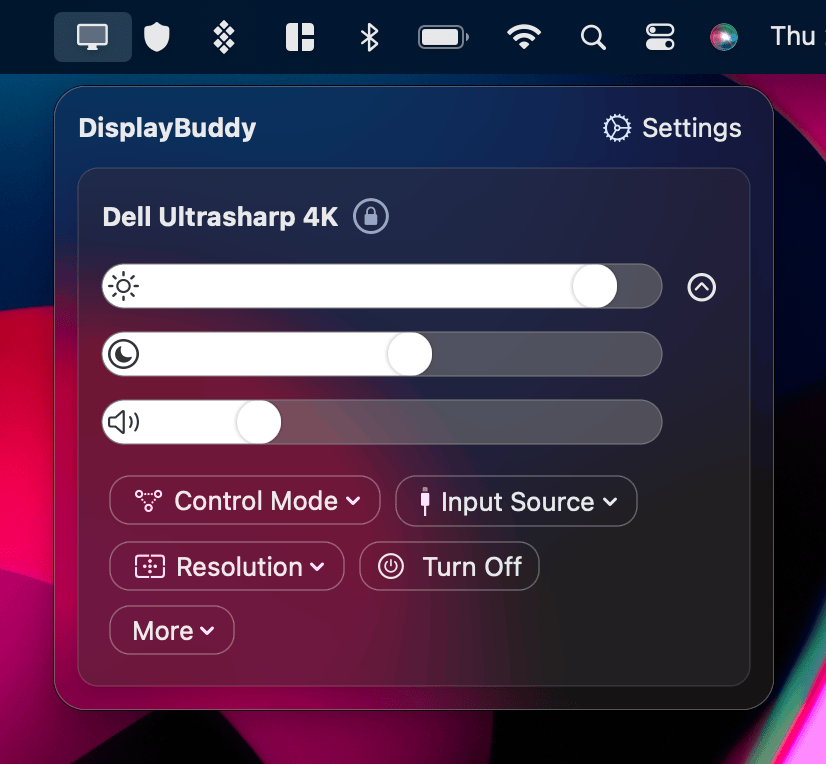
- DisplayBuddy has multiple modes to control your display. You can try out different modes to see what works for your display by clicking on your display name > Controlled using.
- If you're using an Apple Silicon Mac (computers with variants of the M1 / M2 chips), and your display is connected using the HDMI port, DDC will not work. This is due to a currently unknown issue. You can still use Software mode for such a display, but to use DDC, you'll need to connect your display to your Mac using a Thunderbolt / USB-C connection instead.
Refunds
Mac
If DisplayBuddy doesn't work as expected for you, just request a refund here within 7 days of your full-price purchase. Refunds are available on full-price purchases only — discounted purchases are not eligible for a refund.
Windows
No refunds are offered for DisplayBuddy for Windows because:
- There's a free trial of DisplayBuddy available on the Windows store to test it with your setup before purchasing it
- Microsoft Store does not offer developers the option to refund specific customers
Contact
If you have any feedback, suggestions or questions regarding DisplayBuddy, you can reach out to us at [email protected]. You can also use the feedback form and we'll get in touch with you on your email.
You can also message us on twitter at @DisplayBuddy.
Frequently Asked Questions
Will it work with my display?
DisplayBuddy talks to your monitor using the DDC/CI specification. If you've a monitor that was manufactured in the last 10 years or so, there's a very high chance it will work great with DisplayBuddy! Most users using monitors from brands like Dell, LG, BenQ, Acer and Samsung use DisplayBuddy to control their displays. DisplayBuddy also works with Samsung smart monitors like the Samsung M5, M7, M8 and ViewFinity S9.
If by chance it doesn't work, we'll refund your full-price DisplayBuddy purchase within 7 days of your order.
Do you offer a free trial?
On Mac: You can purchase and try DisplayBuddy risk-free — if it doesn't work for you, we'll refund your purchase within 7 days, no questions asked. Refunds apply to full-price purchases only. You can also try DisplayBuddy & 220 other top class Mac apps free for 7 days on SetApp.
Windows: You can try DisplayBuddy for free for 7 days on the Microsoft Store.
How many Macs can I run this on?
Your license is valid for use on upto 1 Macs you own with the Personal license. There are also Pro (2 Macs) and Family (5 Macs) licenses available.
Are Apple Silicon Macs supported?
Yes, Apple Silicon (M1, M1 Pro, M1 Max, M1 Ultra, M2, M2 Pro, M2 Max & M3, M3 Pro, M3 Max, M4, M4 Pro, M4 Max) Macs are supported, and can control external display brightness, contrast and volume using DDC. You can also use DisplayBuddy to adjust the iMac screen brightness or the Apple Studio Display / Pro Display XDR Brightness.
Note: DDC on the HDMI port in M1 Macs doesn't work yet, because it doesn't forward DDC commands to the display for a currently unknown reason. Displays connected to the Thunderbolt / USB 4 ports work fine with DDC, and the HDMI port of M2 Macs also work fine.
How can I download the latest version?
You can click the settings icon in the bottom right of DisplayBuddy and select "Check for Updates" to automatically get the latest version. You can also get the latest version of DisplayBuddy here.
If you're using an older macOS version like High Sierra, Mojave or Catalina (10.13 -> 10.15) you can download and use DisplayBuddy 1.45, which supports these older macOS versions.
DisplayBuddy
for macOS 10.13+
Take control of your monitors
Control brightness, contrast, volume, and much more.
Buy NowLifetime license • 7-day refund on full-price purchases