Getting Started with DisplayBuddy
Set up DisplayBuddy, connect to your monitors, and start controlling them right away.
Welcome to DisplayBuddy! This quick guide will help you set up the app, connect to your monitors, and start controlling them right away.
Welcome Setup
When you open DisplayBuddy for the first time, you’ll see a Welcome Setup Window. Here you can enter your license key to validate your purchase and follow the guided steps to setup DisplayBuddy.
Note: Licenses can't be shared across multiple user accounts on the same Mac — each account is treated as a separate Mac. If you use multiple accounts or Macs, you can easily upgrade your license to include more devices.
Menu Bar Icon
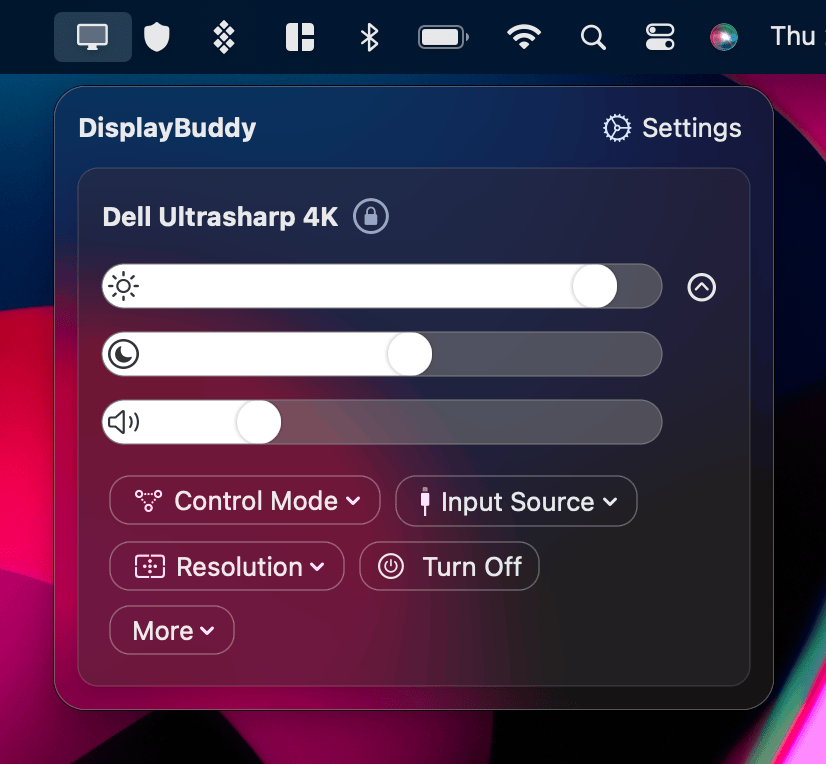
DisplayBuddy doesn’t appear in your Dock — it lives in your menu bar, shown as a small monitor icon at the top right of your screen. Clicking this icon opens DisplayBuddy’s main window, where you can control all your connected displays.
If You Don't See the Icon
- If you have too many menu bar apps open, DisplayBuddy might be hidden. Try closing a few to make space.
- If you're using menu bar management apps like Bartender, ensure DisplayBuddy is visible so you can easily access it.
Main UI
The main DisplayBuddy window lists all your connected monitors. For each display, you can switch between:
- Simple View: quick access to brightness, contrast, and volume.
- Expanded View: additional controls like input source, power, rotation, and resolution (depending on your display).
Each monitor has its own set of sliders — just drag to adjust instantly.
Control Mode
Control Mode is one of the most important settings in DisplayBuddy — it decides how the app talks to your monitor and which controls are available. DisplayBuddy automatically detects the best one for your monitor, but here's a quick overview of each mode:
DDC (Display Data Channel)
DDC is the standard control method for most external monitors. It uses a common set of commands to adjust brightness, contrast, volume, input source, and more. Most modern monitors made in the last decade support DDC.
Apple Display Protocol
Used for Apple’s own displays — like the Pro Display XDR, Apple Studio Display, and your MacBook’s built-in screen.
Software Control
If your monitor doesn’t respond to DDC or Apple’s protocol, DisplayBuddy can fall back to Software Control. This mode dims your screen using software, simulating brightness changes (it doesn't affect the real hardware). It also lets you control Sidecar and AirPlay displays.
Samsung Smart
Exclusive to DisplayBuddy, this mode controls Samsung Smart Monitors and Smart TVs (like the M7, M8, and ViewFinity S9) over Wi-Fi. It gives you full control of the monitor’s real brightness, volume, input source, and even includes a built-in remote for navigating apps.
Next, learn how to Setup Keyboard Shortcuts, create your first Preset, or keep everything in sync with Sync.
DisplayBuddy
for macOS 10.13+
Take control of your monitors
Control brightness, contrast, volume, and much more.
Buy NowLifetime license • 7-day refund on full-price purchases