Setup Keyboard Shortcuts
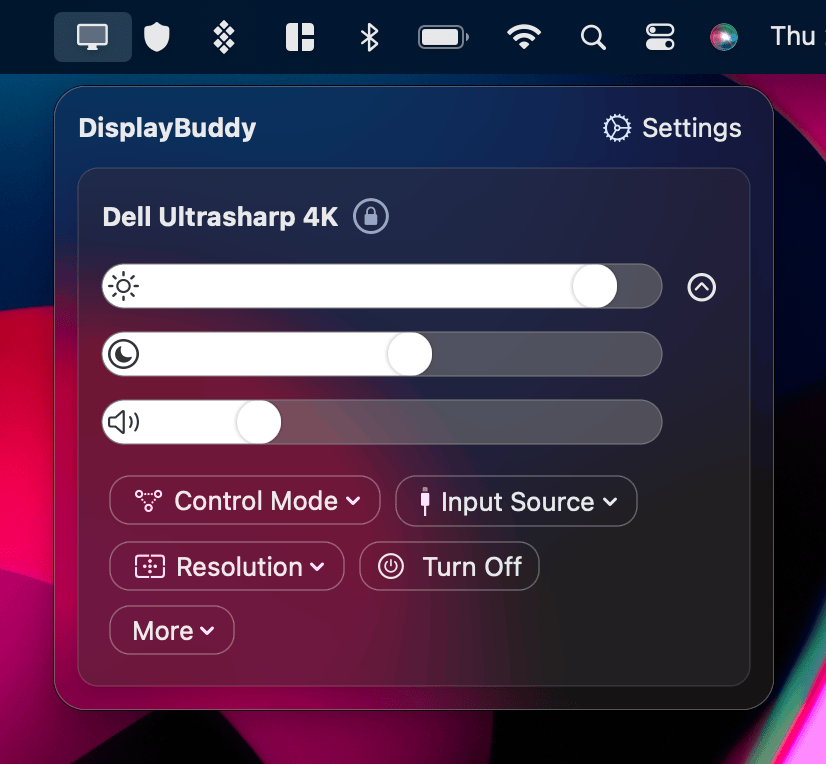
Use your keyboard to control display brightness, contrast, and volume.
One of the most loved features of DisplayBuddy is being able to control your displays right from your keyboard — just like you would with your Mac’s built-in screen.
Setup
You can set up and customize your keyboard shortcuts in Preferences → Keyboard Shortcuts. DisplayBuddy supports both Media Keys (brightness and volume keys) and Custom Shortcuts.
🎹 Media Keys
DisplayBuddy can use your Mac’s built-in brightness and volume keys to control your external displays. This is not enabled by default because it requires additional permissions from macOS.
You can enable this in Preferences > Keyboard Shortcuts by checking "Use Keyboard brightness / volume keys to control brightness / volume for all displays".
Note: macOS requires Accessibility permissions for this feature. You’ll be prompted automatically, or you can grant them in System Settings → Privacy & Security → Accessibility → DisplayBuddy.
⌨️ Custom Keyboard Shortcuts
Prefer your own key combinations? You can assign custom shortcuts for:
Global Brightness / Contrast / Volume
Set these under Preferences → Keyboard Shortcuts → Global Keyboard shortcuts.
Activating Presets or Switching Inputs
Set these under Preferences → Keyboard Shortcuts → Custom Keyboard shortcuts.
🎛️ Controlling One or All Displays
By default, DisplayBuddy adjusts only the active display (display with mouse pointer) using the keyboard. You can also choose to control all the displays together by changing the Keyboard Shortcuts Control option to All Displays.
⚙️ Adjusting Step Size
Customize how much each key press changes brightness, contrast, or volume (the step size). Click More > Keyboard > Keyboard Increments under their sliders in DisplayBuddy to adjust this per display.
Next, learn how to keep your monitors matched using Sync or save your setups with Presets.
DisplayBuddy
for macOS 10.13+
Take control of your monitors
Control brightness, contrast, volume, and much more.
Buy NowLifetime license • 7-day refund on full-price purchases