Command Line - displaybuddy CLI
Control your displays from the terminal with scripts, shortcuts, and automation.
Control your displays from the terminal with scripts, shortcuts, and automation.
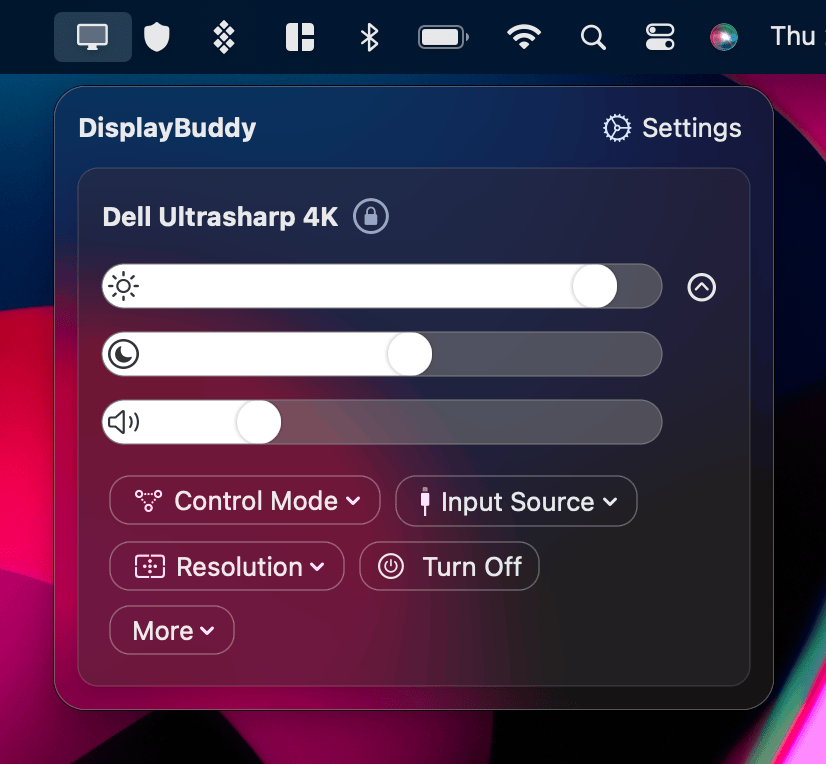
DisplayBuddy includes a built-in command line tool that lets you adjust brightness, contrast, volume, input source, and more — right from the terminal. It communicates with the running DisplayBuddy app, so everything you can do in the UI, you can do from a script.
Installing
Open DisplayBuddy Settings → Command Line & AI, then click Install. This adds the "displaybuddy" command in your Terminal, and keeps it up to date automatically when DisplayBuddy updates.
After installing, open a new terminal window and run:
displaybuddy status
You should see a quick overview of all your connected displays.
Note: DisplayBuddy must be running for the CLI to work. The CLI communicates with the app to read and control your displays.
Quick Overview
displaybuddy status
Shows a compact table of all displays with their current brightness, contrast, volume, and input source.
Listing Displays
displaybuddy list
Shows detailed information about every connected display, including its name, UUID, index number, and control method.
Getting Display Properties
displaybuddy get "Dell U2723QE"
displaybuddy get --index 1
displaybuddy get --uuid XXXXXXXX-XXXX-XXXX-XXXX-XXXXXXXXXXXX
Returns all properties for a display. You can identify a display by its name (case-insensitive), index number from list, or UUID.
To get a specific property:
displaybuddy get "Dell U2723QE" --brightness
displaybuddy get "Dell U2723QE" --contrast
displaybuddy get "Dell U2723QE" --volume
Setting Display Properties
displaybuddy set "Dell U2723QE" --brightness 70
displaybuddy set "Dell U2723QE" --contrast 50 --volume 30
displaybuddy set --all --brightness 80
You can set multiple properties at once, and use --all to apply changes to every display.
Available properties:
--brightness <0-100>— Display brightness--contrast <0-100>— Display contrast--volume <0-100>— Speaker volume--input <source>— Input source (e.g.,hdmi1,displayport1, or a DDC code like17)--rotation <0|90|180|270>— Screen rotation--xdr-brightness <0-100>— XDR/ultra-bright brightness for supported displays
Presets
displaybuddy preset list
displaybuddy preset activate "Night Mode"
displaybuddy preset activate "Presentation" --delay 5
List all saved presets, or activate one by name. The optional --delay flag waits the specified number of seconds before activating.
Schedules
displaybuddy schedule list
displaybuddy schedule enable <id>
displaybuddy schedule disable <id>
List all schedules and enable or disable them by their ID (or a unique prefix of the ID).
Sync
displaybuddy sync
displaybuddy sync enable "Dell U2723QE"
displaybuddy sync disable
Check the current sync status, enable sync with a specific display as the host, or turn sync off.
Samsung Smart Monitor
displaybuddy samsung "Samsung Smart Monitor" volumeup
displaybuddy samsung "Samsung Smart Monitor" hdmi
displaybuddy samsung "Samsung Smart Monitor" power
Send remote commands to Samsung Smart Monitors over WebSocket. Available commands include volumeup, volumedown, mute, power, brightnessup, brightnessdown, contrastup, contrastdown, hdmi, hdmi2–hdmi5, allsources, up, down, left, right, enter, return, menu, home, channelup, and channeldown.
Output Formats
By default, the CLI uses human-readable output in an interactive terminal and JSON when piped to another program. You can override this:
displaybuddy status --json
displaybuddy get "Dell U2723QE" --human
JSON output is useful for scripting and automation — pipe it to jq or parse it in your favorite language.
Version
displaybuddy version
Shows the CLI version and the version of the running DisplayBuddy app.
Uses
- Scripting: Automate display settings with shell scripts, cron jobs, or Shortcuts.
- Keyboard shortcuts: Bind terminal commands to system-wide hotkeys.
- Remote control: SSH into your Mac and adjust displays from another machine.
- AI integrations: Pair with the DisplayBuddy MCP server to let AI assistants control your monitors.
DisplayBuddy
for macOS 10.13+
Take control of your monitors
Control brightness, contrast, volume, and much more.
Buy NowLifetime license • 7-day refund on full-price purchases