How to Fix External Monitor Flickering on Mac (2026 Guide)
External monitor flickering on your Mac? Step-by-step fixes for auto-brightness conflicts, cable issues, and refresh rate problems. Works on M1 to M5.
Your external monitor flickers, goes black for a second, or shows crawling pixels. You have tried restarting. It happened again. This is one of the most common and most frustrating problems for Mac users with external displays, especially on Apple Silicon MacBooks and desktops (MacBook Air, MacBook Pro, Mac Mini, Mac Studio, and iMac with M1 through M5 chips).
The good news: most monitor flickering has a fixable cause. This guide walks you through every proven solution, from the fastest software fix to the deeper hardware-level checks. If your monitor flickers because of auto-brightness conflicts, you can fix it in about two minutes.
Why Your External Monitor Flickers on Mac
Monitor flickering on Mac is almost always caused by one of five things. Understanding the cause makes the fix obvious. Each card links to the fix that solves it.
Brightness Fluctuations in the Background
Variable Refresh Rate (VRR) Issues
Cable and Adapter Problems
Gray Level Threshold Bug
macOS Display Driver Bugs
Quick Diagnostic: Software or Hardware?
Before trying fixes, spend 60 seconds figuring out what category your flickering falls into.
Start with the gray-level flicker test. The strip below ramps from black through the dark grays (around gray level 16) that trigger the single most common Apple Silicon flicker bug. Watch it for a few seconds, ideally with Dark Mode on.
If the screen flickers, shimmers, or the backlight visibly pulses while this box is on screen, you have the gray level threshold bug. The permanent fix is Fix 8: Force RGB Color Output. If the box looks rock-steady, your flicker has another cause; run the four tests below.
Test 1: Open a bright, solid-color wallpaper. If the flickering stops when the screen shows mostly white or bright colors but returns with dark grays, you likely have the gray level threshold issue. Dark Mode is the trigger, not the root cause.
Test 2: Wiggle the cable at both ends. If the screen flickers or goes black when you move the cable, you have a cable or port problem. Replace the cable before trying anything else.
Test 3: Try a different port or adapter. If your Mac has multiple USB-C ports, switch to a different one. If you use a dongle, try connecting the monitor directly with a USB-C to USB-C cable (if the monitor supports it).
Test 4: Connect the monitor to a different computer. If the monitor also flickers on a Windows PC or another Mac, the monitor hardware itself may be the problem.
Fixes at a Glance
| Fix | Difficulty | Time | What It Solves |
|---|---|---|---|
| Disable Variable Refresh Rate | Easy | 1 min | VRR-related flickering |
| Replace cable or adapter | Easy | 5 min | Signal/connection issues |
| Lock brightness manually (DisplayBuddy) | Easy | 2 min | Brightness-driven flicker |
| Adjust True Tone and Night Shift | Easy | 1 min | Color profile-related flicker |
| Reset NVRAM | Easy | 2 min | Corrupted display settings |
| Update macOS | Medium | 30 min | Known display driver bugs |
| Update monitor firmware | Medium | 15 min | Monitor-side processing bugs |
| Change plug-in sequence | Easy | 2 min | Handshake/initialization issues |
| Switch to Light Mode | Easy | 1 min | Gray threshold flickering (temporary) |
| Force RGB color output | Medium | 5 min | Gray-level / Dark Mode flicker (Dell, LG) |
Fix 1: Disable Variable Refresh Rate
This is the fastest fix and solves the problem for many Apple Silicon Mac users.
- Open System Settings > Displays.
- Click your external monitor in the sidebar.
- Look for a Refresh Rate dropdown. If it says "ProMotion" or shows a variable range, change it to a fixed rate (typically 60 Hz).
- If you see a Variable Refresh Rate toggle, turn it off.
VRR lets the display dynamically adjust its refresh rate to match content. Some monitors, particularly older 4K displays, do not handle the transitions smoothly. Locking the refresh rate to 60Hz eliminates the flickering for these monitors.
Fix 2: Check Your Cable and Connection Type
Bad cables cause more flickering than any software bug. Here is how the connection types compare for flicker reliability on Apple Silicon Macs.
Replace the cable. Do not troubleshoot with the same cable. Swap in a known-good cable and see if the flickering stops. If you are using a USB-C to HDMI adapter, try a different one. Cheap adapters are the number one cause of intermittent flickering.
Prefer DisplayPort or USB-C over HDMI. HDMI connections on Apple Silicon Macs have more compatibility issues than USB-C or Thunderbolt connections. If your monitor supports USB-C input, connect directly with a USB-C cable. If it supports DisplayPort, use a USB-C to DisplayPort cable instead of HDMI.
Check the cable spec. For 4K at 60Hz, you need at least HDMI 2.0 or DisplayPort 1.2. For 4K at 120Hz or 5K, you need HDMI 2.1 or Thunderbolt 4. An underspec cable will work intermittently and flicker under load.
Fix 3: Lock Brightness Manually With DisplayBuddy
If your monitor flickers when the brightness shifts on its own (auto-brightness, Eco mode, True Tone, Dynamic Contrast), the cleanest fix is to set a fixed brightness from your Mac and stop relying on automatic adjustments.
DDC/CI (Display Data Channel / Command Interface) is the protocol that lets a Mac app talk directly to your monitor's hardware brightness, contrast, and volume controls over the display cable. It is the same protocol your monitor's OSD buttons use, just driven from software.
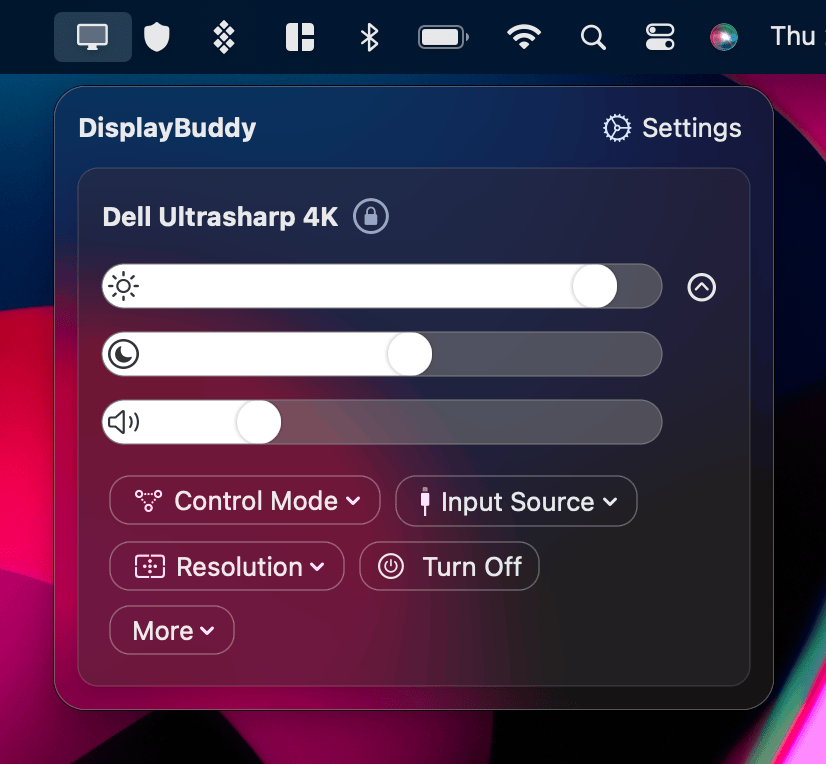
DisplayBuddy is a Mac and Windows app that gives you direct control over your external monitor's brightness, contrast, and volume from the menu bar. Once you set brightness manually in DisplayBuddy, the monitor holds that level instead of drifting in response to ambient light, content changes, or background adjustments. That alone resolves most brightness-driven flicker.
DisplayBuddy also lets you:
- Use your Mac keyboard brightness keys (F1/F2) to control external monitors
- Save presets so you can switch between "daytime bright" and "nighttime dim" in one click
- Sync brightness across multiple monitors so they all match
- Schedule brightness changes based on time of day
This fix works on Dell, LG, Samsung, BenQ, ASUS, Acer, HP, AOC, MSI, ViewSonic, and any other monitor that supports DDC/CI.
Fix 4: Adjust Display Settings
Several macOS display features can interact poorly with external monitors.
Disable True Tone
True Tone adjusts your display's white point based on ambient light. On external monitors, this can trigger rapid color temperature shifts that look like flickering.
- Open System Settings > Displays.
- Select your external monitor.
- Uncheck True Tone if the option appears.
Not all external monitors expose the True Tone toggle. If you do not see it, this is not your issue.
Turn Off Night Shift Temporarily
Night Shift gradually warms your display color. The transition can cause subtle flickering on some monitors.
- Open System Settings > Displays > Night Shift.
- Set the schedule to Off temporarily.
- If the flickering stops, set Night Shift to Custom with a manual time range instead of "Sunset to Sunrise" to avoid the automatic transition.
Try Light Mode
If your monitor flickers primarily when displaying dark gray content, try switching to Light Mode temporarily.
- Open System Settings > Appearance.
- Select Light.
This is a workaround, not a permanent fix. The gray level threshold issue (described above) means certain gray pixel values cause the monitor's backlight controller to oscillate. Light Mode avoids those gray values by using mostly white backgrounds.
Fix 5: Reset NVRAM
NVRAM stores display-related settings like resolution, refresh rate, and brightness level. Corrupted NVRAM values can cause persistent flickering even after you change settings in System Settings.
On Apple Silicon Macs (M1, M2, M3, M4, M5)
Apple Silicon Macs have no NVRAM reset key combination. Apple removed it. macOS tests and clears NVRAM automatically at every startup, so the first thing to try is a full shutdown: power the Mac down completely, wait 30 seconds, then turn it back on. This clears NVRAM for most cases.
If the flickering persists and you suspect a stuck NVRAM value, force a clean reset from Terminal:
- Open Terminal (Applications > Utilities, or search for it with Spotlight).
- Type sudo nvram -c and press Return. Enter your administrator password if prompted (nothing appears on screen as you type it).
- Type sudo shutdown -r now and press Return to restart and apply the change.
On Intel Macs
- Shut down your Mac.
- Turn it on and immediately press and hold Option + Command + P + R.
- Hold the keys for about 20 seconds. Your Mac will appear to restart.
- Release the keys and let it boot normally.
After resetting NVRAM, you may need to reconfigure your display resolution and refresh rate in System Settings.
Fix 6: Update macOS and Monitor Firmware
Update macOS
Apple has included display stability improvements across multiple macOS releases. Some users report that updating macOS reduced or eliminated external monitor flickering, though Apple has never named a fix for Apple Silicon external monitor flicker. Keeping macOS up to date is still one of the best first steps.
- Open System Settings > General > Software Update.
- Install any available updates.
- Restart your Mac after the update completes.
Update Monitor Firmware
Monitor manufacturers release firmware updates that fix display processing bugs. Dell monitors in particular have had firmware updates that directly address the flickering issue with Apple Silicon Macs.
Check your monitor manufacturer's support page for firmware updates:
- Dell: Look for your model on Dell Support and check the Drivers & Downloads section. Some Dell firmware updates require a Windows PC to install.
- LG: Download OnScreen Control from LG's website, which can push firmware updates to your monitor.
- Samsung: Check Samsung's Download Center for your monitor model.
- BenQ: Visit BenQ's download page for your specific model.
Fix 7: Change the Plug-in Sequence
This fix sounds strange, but it works. The order in which you power on your monitor and connect the cable can affect the display handshake.
Try this sequence:
- Disconnect the cable from your monitor.
- Turn off the monitor using its power button.
- Wait 10 seconds.
- Turn the monitor back on.
- Plug the cable in while the monitor is on and showing "No Signal."
If the flickering stops, your issue is likely related to the initial handshake between macOS and the monitor. Some monitors negotiate the wrong resolution or refresh rate during the initial connection, and re-establishing the connection in this order forces a clean handshake.
Fix 8: Force RGB Color Output
This is the permanent fix for the gray level threshold bug: the dark-gray and Dark Mode flicker on Dell, LG, and other monitors connected to Apple Silicon Macs.
The root cause is the color format. Over HDMI, Apple Silicon Macs often send video as YCbCr instead of RGB. Combined with macOS temporal dithering and monitors that advertise 10-bit color on an 8-bit panel, this makes the backlight oscillate when pixel values sit near gray level 16. Forcing the Mac to output RGB stops it at the source.
There are two reliable ways to force RGB. Try them in this order.
Switch to DisplayPort or USB-C
A USB-C to DisplayPort connection, or USB-C straight into a USB-C monitor, almost always negotiates RGB, while HDMI on Apple Silicon frequently defaults to YCbCr. This is the same cable advice from Fix 2, and for the gray-level bug it is often the entire fix. Try it before anything else.
Set the Color Format in the Monitor's OSD
Some monitors let you pick the input color format directly. Open the monitor's on-screen menu and look under a heading like Input Color Format, Color Space, or Picture. If you see an RGB option versus YCbCr, YPbPr, or Auto, set it to RGB. Several Dell, LG, and Samsung models fix the flicker this way with no software at all.
If neither route is available on your setup, the fix moves to the monitor side. A firmware update sometimes changes the default color format, and the brand-specific steps below resolve it on many Dell and LG models.
Brand-Specific Flickering Fixes
Different monitor brands have different quirks when connected to Macs. Here are the most common brand-specific issues and fixes.
Dell Monitors
Dell monitors (S2722QC, U3223QE, S2721QS, P2721Q) are some of the most commonly reported for flickering with Apple Silicon Macs. Dell has documented the issue: the monitor's Image Compensation Algorithm conflicts with YCbCr video output from Apple Silicon chips, triggering the gray level threshold flicker.
Dell-specific fixes:
- Open the monitor's OSD menu. Disable Dynamic Contrast, Eco Mode, or any "Smart Brightness" option if any of them are enabled. These on-monitor features adjust the backlight in response to screen content and are a common flicker trigger on Apple Silicon Macs.
- Under Display > USB-C Prioritization, select High Resolution instead of High Speed Data.
- Run LCD Conditioning once from the OSD menu (Others > LCD Conditioning).
- Check for firmware updates on Dell Support. Dell has released firmware updates (e.g., M3B102 for the S2722QC) that address this directly.
On top of these fixes, using DisplayBuddy to set a fixed brightness from your Mac stops the backlight from drifting back into the flicker range. That makes it especially useful if the firmware update doesn't fully eliminate the issue or if your Dell model has no firmware fix yet.
For more Dell-specific display control tips, see our Dell monitor control guide.
LG Monitors
LG monitors sometimes flicker due to their own display management software, LG OnScreen Control, which runs via Rosetta on Apple Silicon Macs and can cause high CPU usage and display instability.
LG-specific fixes:
- Uninstall LG OnScreen Control if you have it installed.
- Use a USB-C or Thunderbolt connection instead of HDMI.
- Check for firmware updates through the LG website.
For LG-specific brightness control, see our LG monitor guide.
Samsung Monitors
Samsung & LG Smart Monitors have an additional connection method: Wi-Fi. If your Samsung monitor flickers over a wired connection, try controlling it over Wi-Fi instead. DisplayBuddy supports Samsung Smart Monitor control over Wi-Fi, including the built-in remote for Samsung Smart Monitors.
When It Is a Hardware Problem
If none of the software fixes work, your flickering may be caused by hardware failure.
Signs of a hardware problem:
- The monitor flickers on every computer you connect it to, not just your Mac
- The flickering happens even when the monitor shows its own OSD menu (with no computer connected)
- You see physical artifacts like horizontal lines, color banding, or dead pixels alongside the flickering
- The flickering started after the monitor was dropped, moved, or exposed to moisture
Run Apple Diagnostics to check if your Mac's GPU or display controller is the issue:
- Shut down your Mac.
- On Apple Silicon: Turn on your Mac and continue to hold the power button until you see the startup options screen. Press Command + D.
- On Intel: Turn on and immediately hold D during startup.
- Follow the on-screen instructions.
If Apple Diagnostics reports a display or GPU issue, contact Apple Support. If the monitor itself is faulty, contact the monitor manufacturer for warranty service.
Frequently Asked Questions
Why is my external monitor flickering on Mac?
External monitor flickering on Mac is usually caused by one of five things: background brightness fluctuations (auto-brightness, Eco mode, True Tone, or Dynamic Contrast shifting the backlight), variable refresh rate (VRR) incompatibility, a bad cable or adapter, the gray level threshold bug (common on Dell and LG monitors with Apple Silicon), or an outdated version of macOS. Start with the quick diagnostic above to narrow down the cause, then apply the matching fix.
Will Apple fix external monitor flicker on Apple Silicon Macs?
Apple has included display stability improvements across multiple macOS updates, though the company has never publicly acknowledged the external monitor flickering issue affecting M1, M2, M3, M4, and M5 Macs. The gray level threshold issue is partly a hardware limitation in how certain monitors process video signals from Apple Silicon chips. Updating to the latest macOS version is the best first step. For monitors where the issue persists, using a DDC/CI app to lock brightness manually or switching from HDMI to USB-C/DisplayPort often resolves the flickering.
Can a bad cable cause monitor flickering?
Yes. A damaged, loose, or underspec cable is one of the most common causes of monitor flickering. USB-C to HDMI adapters are especially prone to issues. Try replacing the cable with a known-good one, and prefer USB-C or DisplayPort connections over HDMI when possible. For 4K at 60Hz, make sure you are using at least an HDMI 2.0 or DisplayPort 1.2 cable.
Does Dark Mode cause monitor flickering on Mac?
Dark Mode itself does not cause flickering, but it can trigger the gray level threshold bug on certain monitors. Some Dell and LG displays connected to Apple Silicon Macs flicker when pixel values cross a specific gray threshold (around gray level 16 in 8-bit color). Since Dark Mode uses gray UI elements that sit near this threshold, it can make the flickering more visible. Switching to Light Mode is a temporary workaround. A more permanent fix is to update monitor firmware or use a DDC/CI app like DisplayBuddy to override auto-brightness.
How do I fix monitor flickering on Windows?
On Windows 10 and 11, monitor flickering is usually caused by outdated display drivers or an incompatible app. Open Task Manager (Ctrl + Shift + Esc). If Task Manager itself flickers, the problem is a display driver. Update your GPU driver through Device Manager or your GPU manufacturer's website. If Task Manager does not flicker but other apps do, uninstall recently installed apps one by one to find the culprit. For brightness-related flickering on external monitors, DisplayBuddy for Windows lets you override auto-brightness via DDC/CI.
What is monitor flickering?
Monitor flickering is a rapid, visible change in screen brightness or color. It can look like the screen is flashing, going black momentarily, showing crawling pixels, or oscillating between brightness levels. The cause is typically a mismatch between the video signal your computer sends and how the monitor processes it. On external monitors connected to Macs, the most common causes are auto-brightness conflicts, variable refresh rate issues, and cable problems.
How much does it cost to fix a flickering screen on a Mac?
Most external monitor flickering on Mac is caused by software issues (auto-brightness conflicts, VRR, outdated macOS) and costs nothing to fix. Replacing a bad cable or adapter typically costs $10 to $30. If the flickering is caused by your Mac's GPU or display controller, an out-of-warranty repair through Apple can run $200 to $600 depending on the model. AppleCare+ covers hardware defects. Before paying for any repair, try the free software fixes in this guide first.
Can HDMI cause screen flickering?
Yes. HDMI connections on Apple Silicon Macs have more compatibility issues than USB-C or Thunderbolt connections. A damaged or underspec HDMI cable, a cheap USB-C to HDMI adapter, or using HDMI 1.4 for a 4K 60Hz display can all cause flickering. If possible, connect your external monitor with a direct USB-C or USB-C to DisplayPort cable instead of HDMI.
Related Guides
- Control External Monitor Brightness on Mac
- Use Brightness Keys to Control External Display Brightness
- Control Dell Monitor Brightness on Mac
- Control LG Monitor Brightness on Mac
- Control Samsung Smart Monitor from Mac
- DisplayBuddy vs MonitorControl
- DisplayBuddy vs BetterDisplay
- All DisplayBuddy Guides
- DisplayBuddy Troubleshooting
DisplayBuddy
for macOS 10.13+
Take control of your monitors
Control brightness, contrast, volume, and much more.
Buy NowLifetime license • 7-day refund on full-price purchases