How to Control Apple Studio Display and Studio Display XDR Brightness on Windows
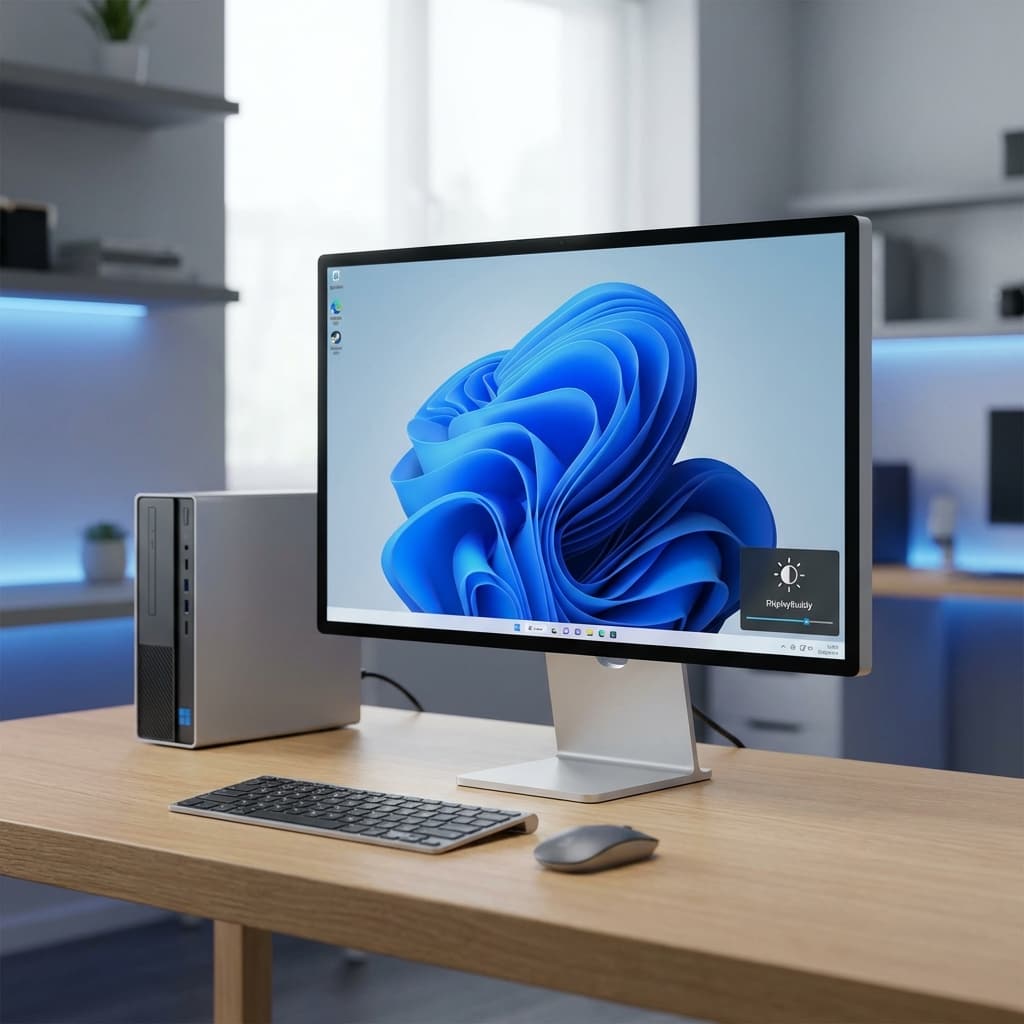
DisplayBuddy for Windows is the only app that gives you direct, hardware-level control over your Apple Studio Display and Studio Display XDR brightness.
The Apple Studio Display and Studio Display XDR are widely considered some of the best high-end monitors on the market. With their stunning industrial design, incredible color accuracy, and high pixel density, they are favorites for creatives—even those who spend their day in Windows.
However, using the Studio Display, the second generation of Studio Display, or the Studio Display XDR on a PC has always come with a major frustration: there are no physical buttons to control the brightness.
While these displays look gorgeous, Windows users are often left with a screen stuck at 100% brightness (blinding at night) or whatever level it was last set to on a Mac. Until now, the only "official" way to change this was installing massive Boot Camp driver packages—a clunky and often unreliable workaround.
DisplayBuddy for Windows changes that. It is currently the only app on Windows that gives you direct, hardware-level control over your Apple Studio Display and Studio Display XDR's brightness.
The Problem: Why Windows Can't Control the Studio Display
Most monitors use a standard called DDC/CI (Display Data Channel/Command Interface) to allow software to adjust brightness. Apple, however, uses a proprietary USB-based protocol for their Studio Displays.
Because of this, standard Windows brightness apps like Monitorian or TwinkleTray simply cannot communicate with the Studio Display or the Studio Display XDR. They might offer a "software overlay" (which just paints a transparent black layer over your screen), but they aren't actually dimming the LEDs. This results in poor contrast, washed-out blacks, and zero power savings.
The Solution: Real Hardware Control with DisplayBuddy
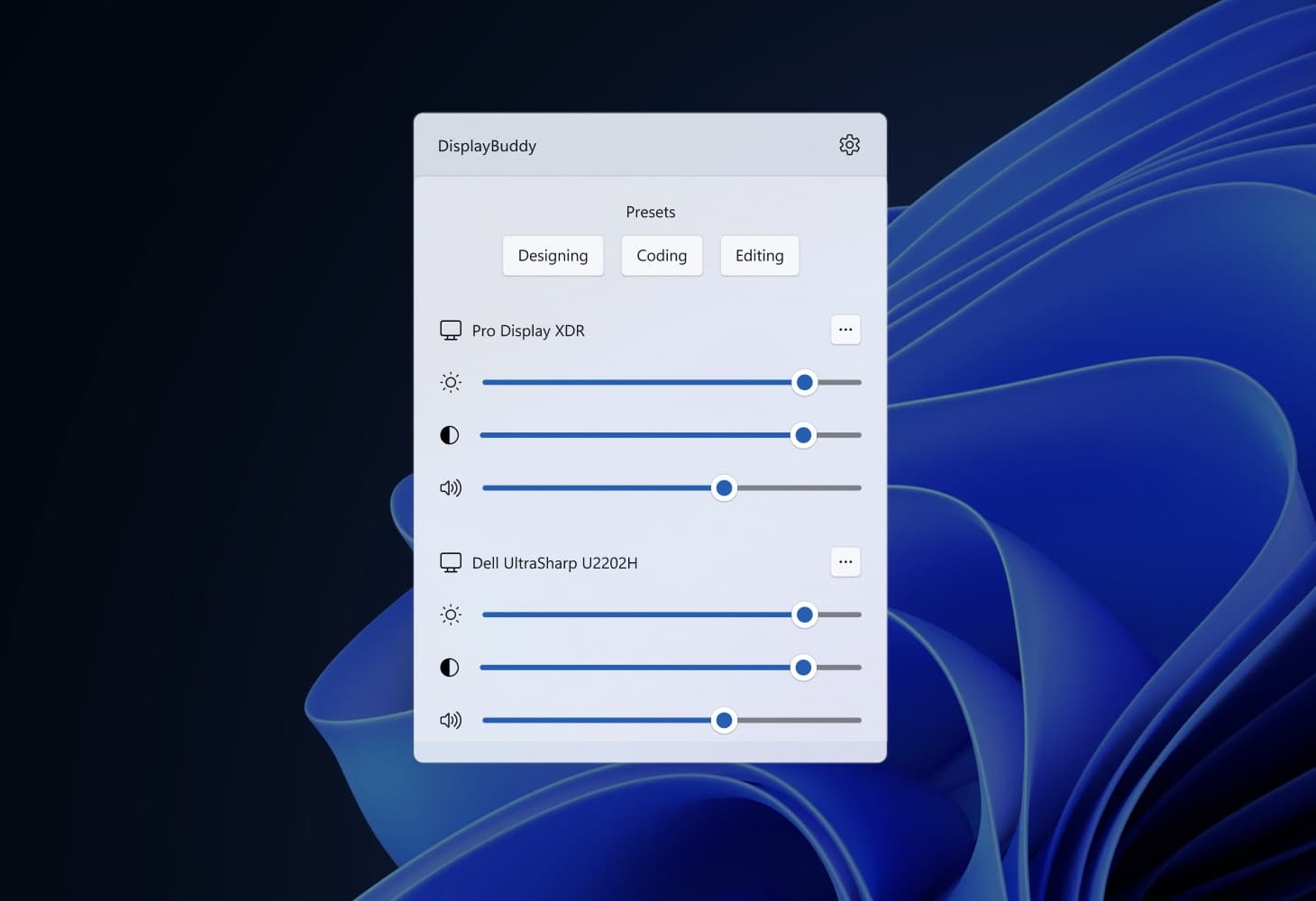
DisplayBuddy for Windows was built to bridge this gap. It speaks the specific language the Studio Display understands, allowing you to control the actual hardware backlight directly from your Windows taskbar or keyboard. It fully supports both the newer second generation of Studio Display and the Studio Display XDR.
Key Features for Studio Display Users:
- Genuine Brightness Control: Adjust the actual backlight of the Studio Display or Studio Display XDR, preserving the full color range and contrast of your premium Apple panel.
- Keyboard Shortcuts: Map your brightness keys (or any custom keys) to control your Apple display, just like you would on a Mac.
- Multi-Monitor Sync: If you're running a dual-setup (perhaps a Studio Display alongside a Dell or LG), DisplayBuddy can sync their brightness so they dim and brighten together.
- No Boot Camp Required: You don't need to clutter your system with Apple's Boot Camp drivers just to change your screen brightness.
How to Set It Up
Getting your Studio Display or Studio Display XDR working perfectly on Windows takes less than a minute:
- Download DisplayBuddy: Grab the Windows version from the DisplayBuddy website.
- Connect via USB-C: Ensure your display is connected to your Windows machine (or GPU) via a compatible Thunderbolt or high-bandwidth USB-C cable.
- Adjust and Go: DisplayBuddy will instantly recognize your Apple display. You can then use the slider in the system tray or set up your preferred keyboard shortcuts.
Why This Matters for Professionals
For designers, editors, and developers who switch between macOS and Windows, consistency is key. Being able to maintain the exact same visual experience and ergonomic control across both operating systems makes the Studio Display and Studio Display XDR truly viable cross-platform tools.
You no longer have to choose between the best monitor and your preferred OS.
Experience Apple Displays on Windows, Unlocked
The Apple Studio Display and Studio Display XDR are premium investments. Don't let Windows limitations hold them back. DisplayBuddy is the missing link that makes them feel right at home on your PC.
Looking for Mac control? DisplayBuddy is also available for macOS with support for almost every external monitor on the market.
DisplayBuddy
for Windows 10 or 11
Take control of your monitors
Control brightness, contrast, volume, and much more.
Get DisplayBuddy on the Microsoft Store